

Documentation Index
Fetch the complete documentation index at: https://docs.superdesign.dev/llms.txt
Use this file to discover all available pages before exploring further.
What are Skills?
Skills are pre-built AI design actions available inside Superdesign. Each skill is optimized for a specific task — generating wireframes, creating landing pages, running user interviews, generating images, and more. You can also install community skills from the Skill Library or create your own.How to Open the Skills Menu
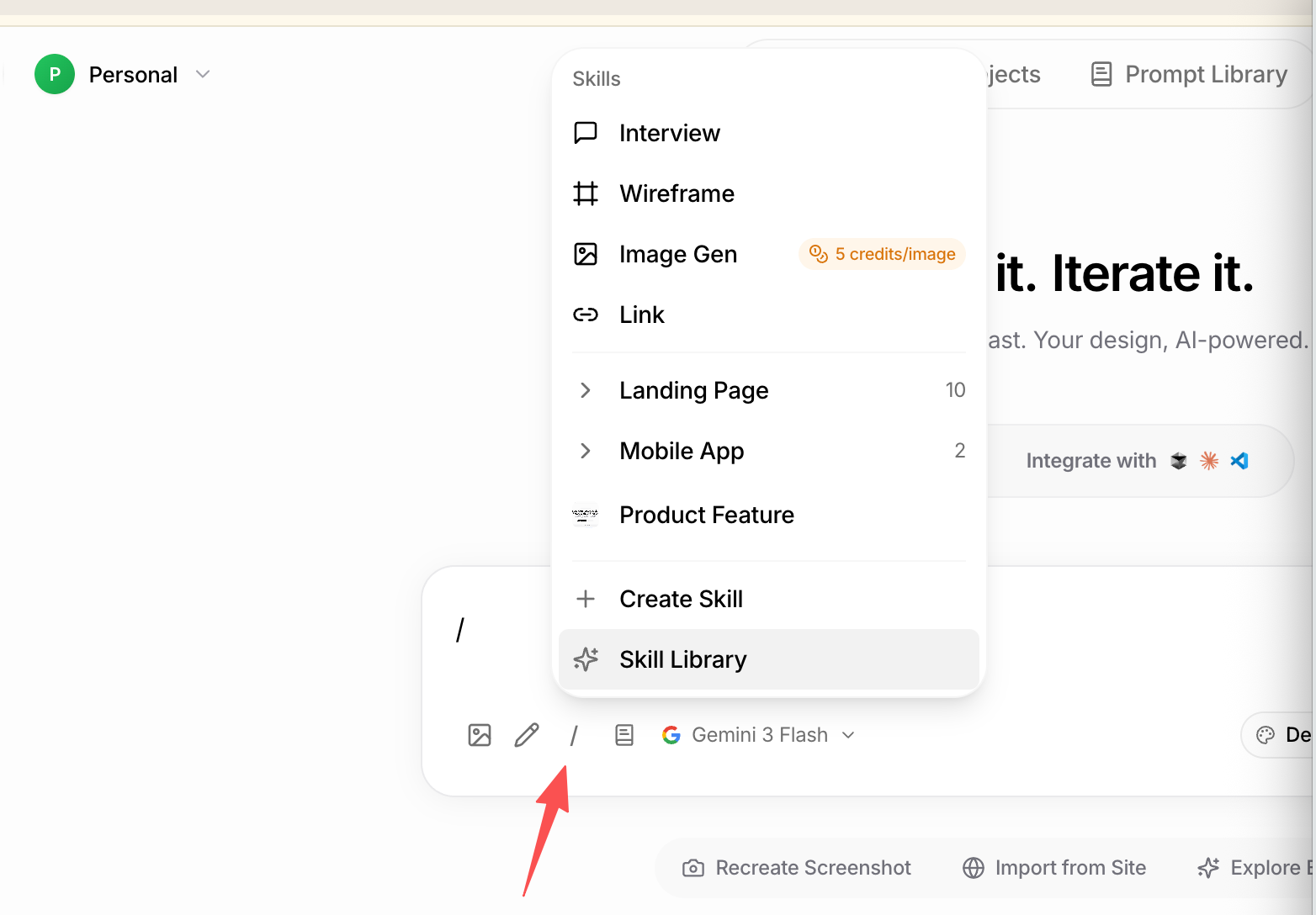
Type/ in the prompt bar at the bottom of the canvas. The Skills menu appears instantly.
Built-in Skills
The following skills come pre-installed with every Superdesign workspace:| Skill | What it does |
|---|---|
| Interview | AI interviews you to build a detailed spec before designing |
| Wireframe | Explores multiple low-fidelity wireframe layouts fast |
| Image Gen | Generates an image from a prompt (costs 5 credits per image) |
| Link | Links @mentioned pages together on the canvas |
| Landing Page | Designs a full landing page (10 presets available) |
| Mobile App | Designs a mobile app screen (2 presets available) |
| Product Feature | Designs a new product feature UI |
Skill Library
The Skill Library is a collection of community-built and curated skills you can install and use instantly. Skills are organized by page type and use case, including: Landing Pages- SaaS homepage, startup landing page, agency site, portfolio
- Pricing page, waitlist page, coming soon page
- Product showcase, testimonials, feature highlight sections
- Onboarding flow, login / signup, dashboard
- Profile page, settings screen, notifications
- E-commerce product listing, cart, checkout
- Admin dashboard, analytics overview, data table
- User settings panel, billing page, team management
- Kanban board, calendar view, feed / activity stream
- Blog post layout, newsletter, email template
- Social media card, presentation slide, pitch deck slide
- Type
/in the prompt bar - Click Skill Library (✦ icon) at the bottom of the menu
- Browse by category or search by keyword
- Click any skill to preview it — you’ll see a thumbnail, description, and the prompt it uses
- Click Use to apply it instantly
Create Your Own Skill
Encode your own design workflow or team conventions as a reusable skill.- Type
/in the prompt bar - Click + Create Skill
- Add a name, description, and prompt instructions
- Save — it appears in your Skills menu and can be shared with your team