

All designs generated in Superdesign are HTML-first. You can export them directly and continue working in your own tools—whether that’s an IDE, an AI coding agent, or Figma.Documentation Index
Fetch the complete documentation index at: https://docs.superdesign.dev/llms.txt
Use this file to discover all available pages before exploring further.
Export Options
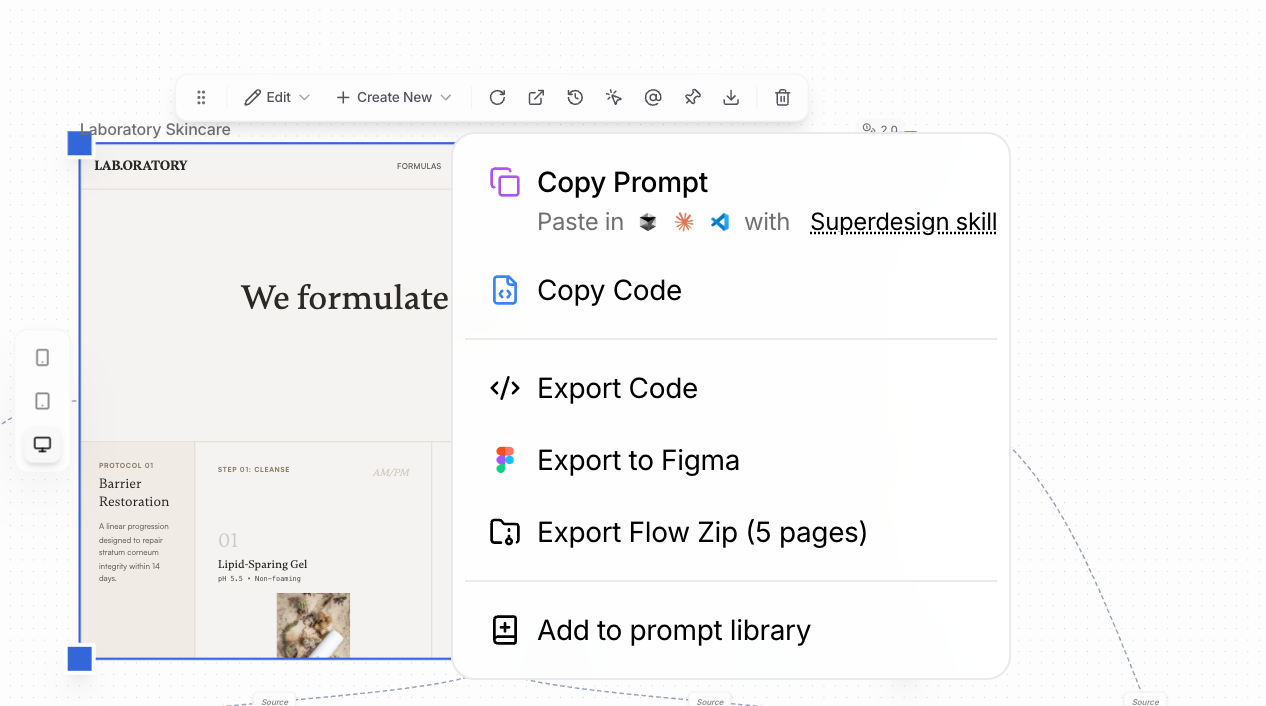
1. Download as ZIP (Frames)
- Select a single frame or multi-select multiple frames
- Export them as a ZIP file
- Each page is included as production-ready HTML
2. Copy HTML Code
- Copy the HTML directly from any frame
- Paste it into your IDE and continue development
3. Pixel-Perfect Transfer with Superdesign Agent
Use the Superdesign Agent skill to transfer designs into your codebase with high fidelity.- Designed for pixel-perfect HTML transfer
- Works directly inside your development workflow
- Best for turning designs into maintainable production code
Guide
Learn how to use the Superdesign Agent skill
4. Export to Figma
If you need to move designs into Figma:- Install the html.to.design Chrome extension
- Use the extension to capture the Superdesign preview page
- Upload the captured file to Figma using the html.to.design Figma plugin
When to Use Which
| Method | Best For |
|---|---|
| ZIP export | Full pages, handoff, or archiving |
| Copy HTML | Quick iteration in code |
| Agent skill | Pixel-perfect production transfer |
| Figma export | Collaboration or design-only workflows |