

Version History allows you to review every iteration of a frame created.Documentation Index
Fetch the complete documentation index at: https://docs.superdesign.dev/llms.txt
Use this file to discover all available pages before exploring further.
How to Access Version History
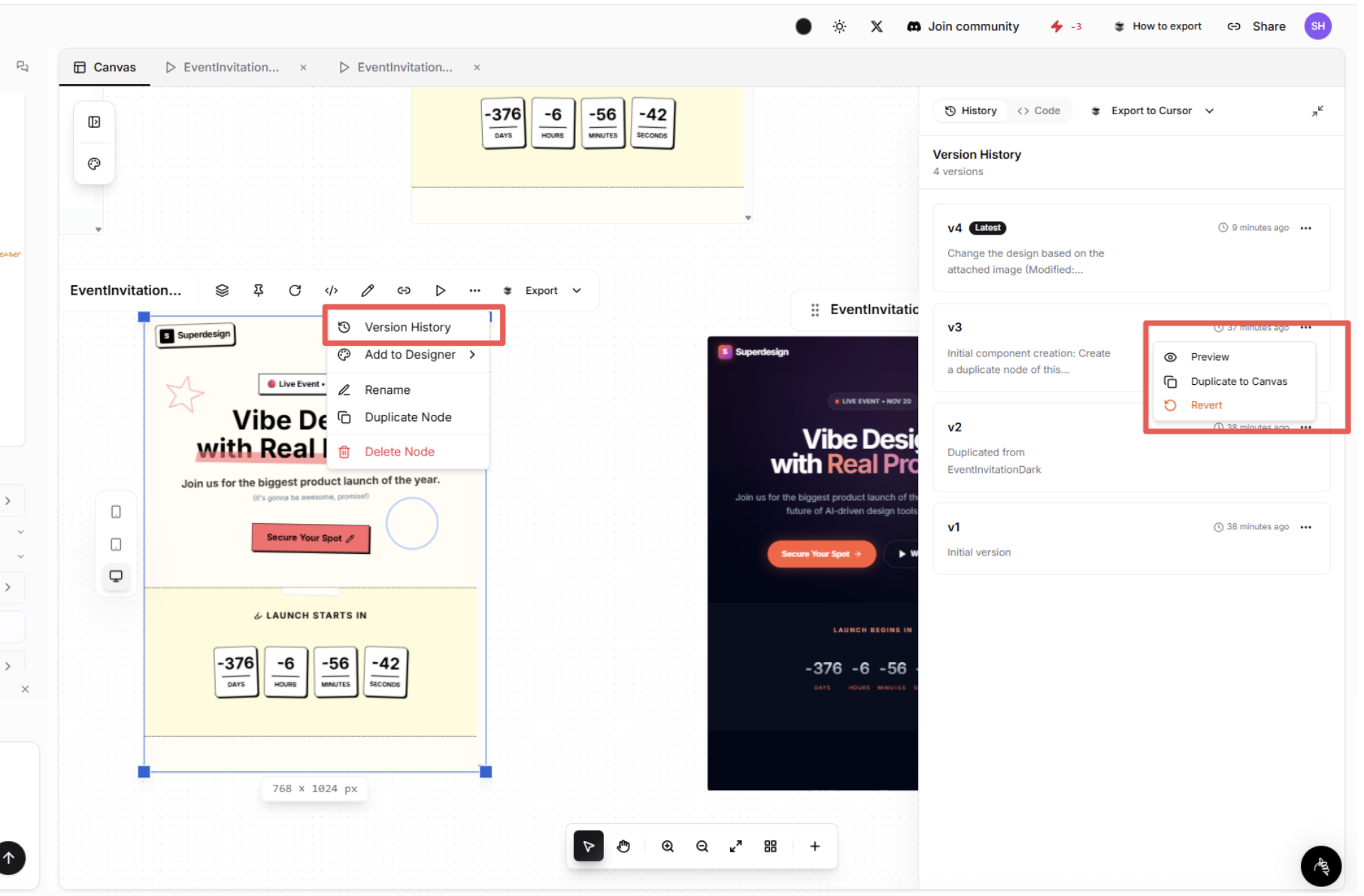
What You Can Do in Version History
Preview a Previous Version
Click Preview to see what an earlier version looked like. This opens a lightweight, non-destructive preview so you can compare designs before taking action. Perfect for:- Revisiting older layout ideas
- Checking changes made by the agent
- Validating differences between variants
Duplicate to Canvas
Click Duplicate to Canvas to add that version back onto your canvas as a new frame. This is useful when you want to:- Compare two versions side-by-side
- Bring back an older design without overwriting the current one
- Explore different directions in parallel