

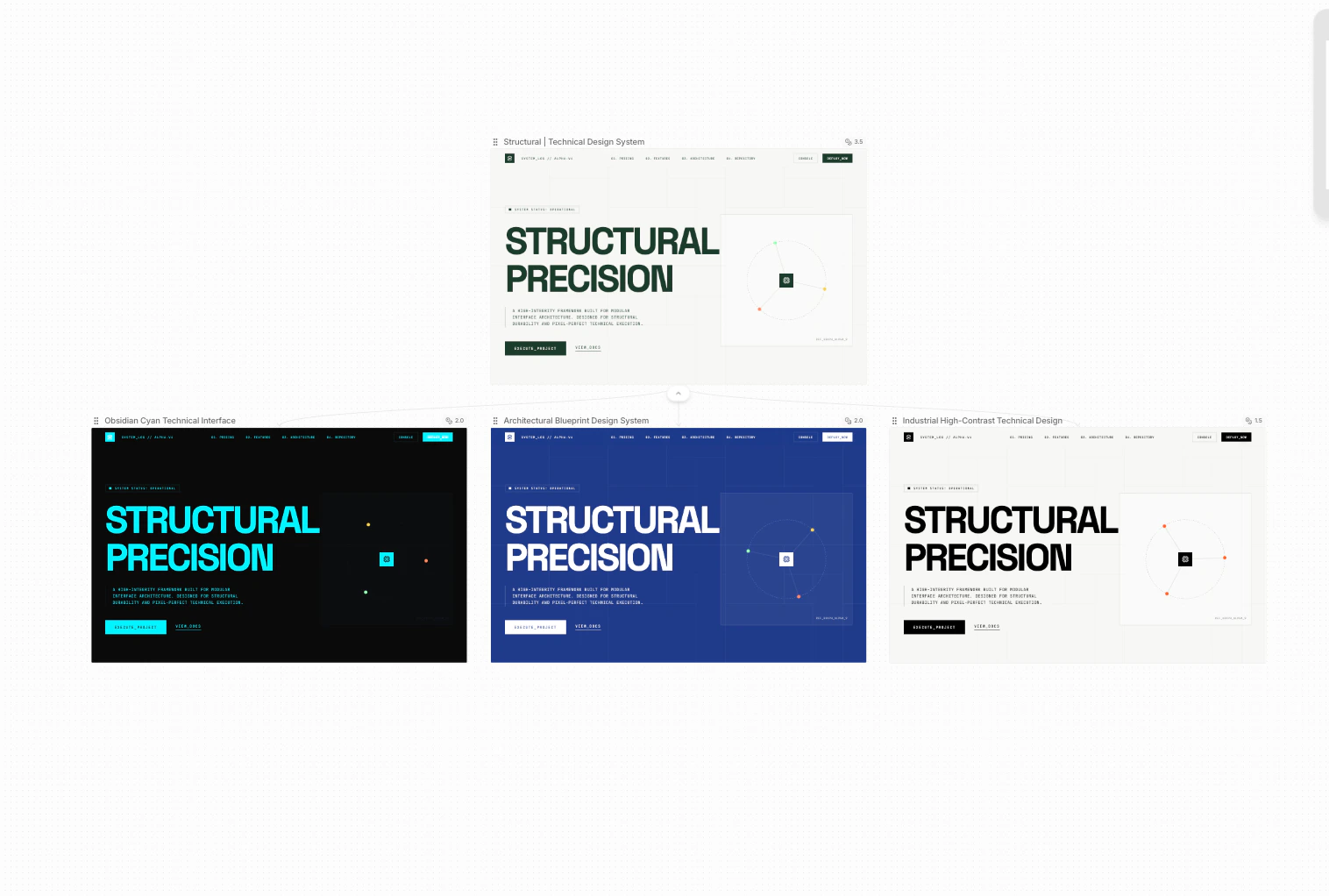
Branch creates parallel design options without changing your current design. Use it to explore different directions safely and compare results side-by-side.Documentation Index
Fetch the complete documentation index at: https://docs.superdesign.dev/llms.txt
Use this file to discover all available pages before exploring further.
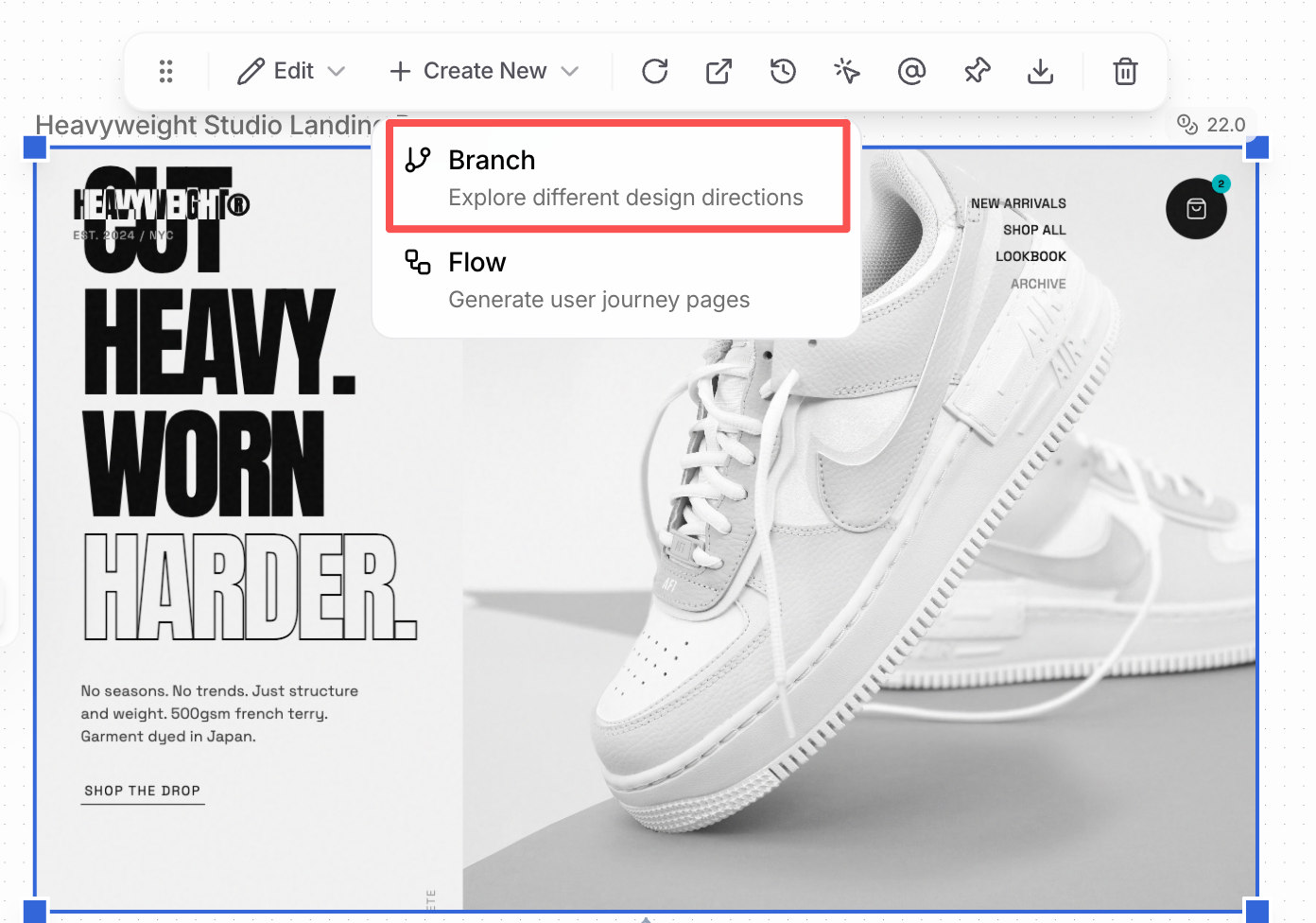
How to Access
- Select a page or frame
- Click Create New → Branch
Branch vs Edit
Branch Mode
- Keeps the current design intact
- Generates new designs as separate branches
- Best for exploration and comparison
Edit Mode
- Updates the current design directly
- Best for refining and polishing
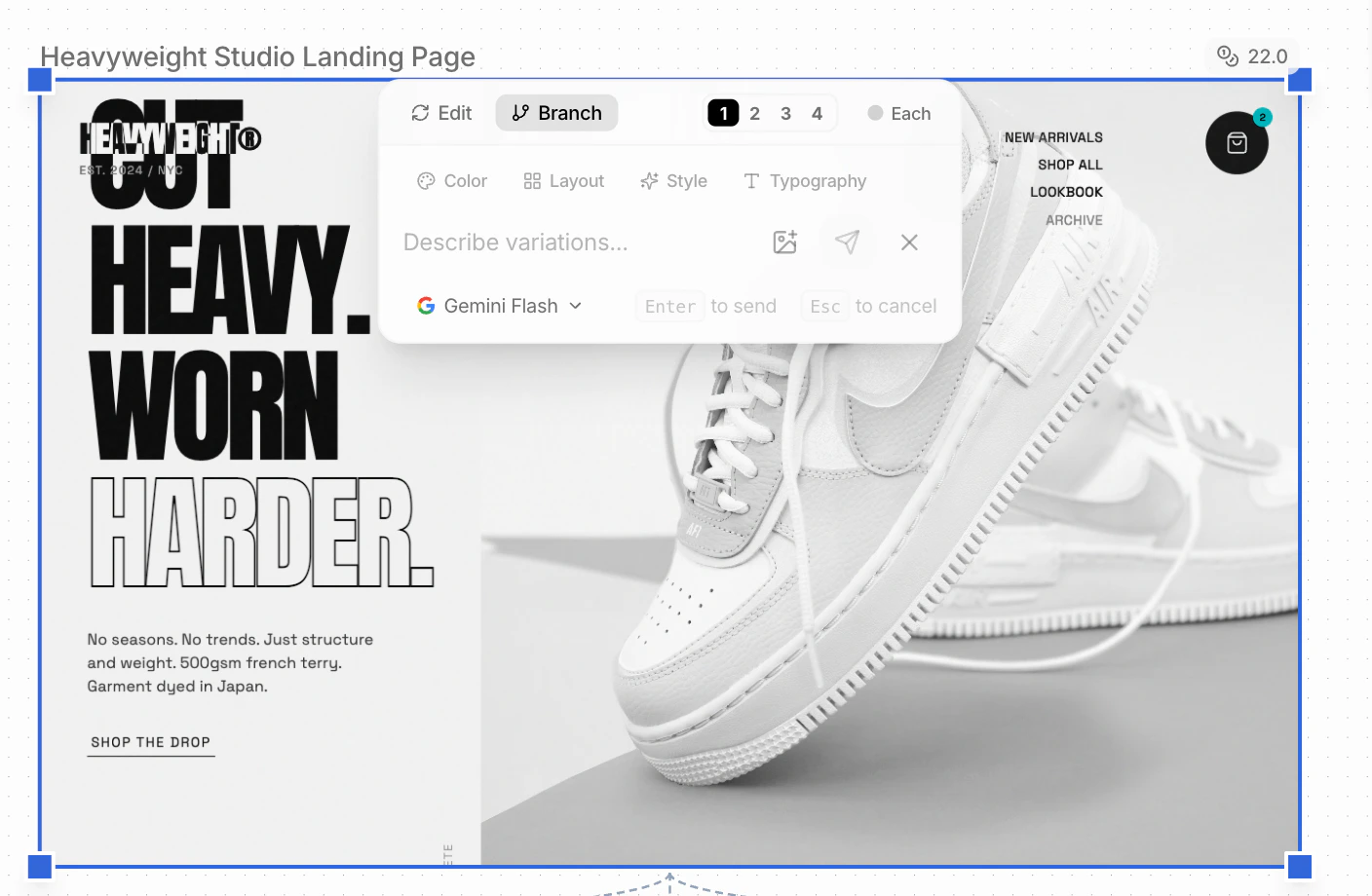
Iterations (1 · 2 · 3 · 4)
The numbers control how many branches are created.- Example: Selecting 3 generates 3 new branches
- All branches start from the same original design
Guiding the Design Agent
You can guide exploration by focusing on:- Color
- Layout
- Style
- Typography
These are optional. If you already know what you want, simply prompt the agent directly.
”Each” Mode
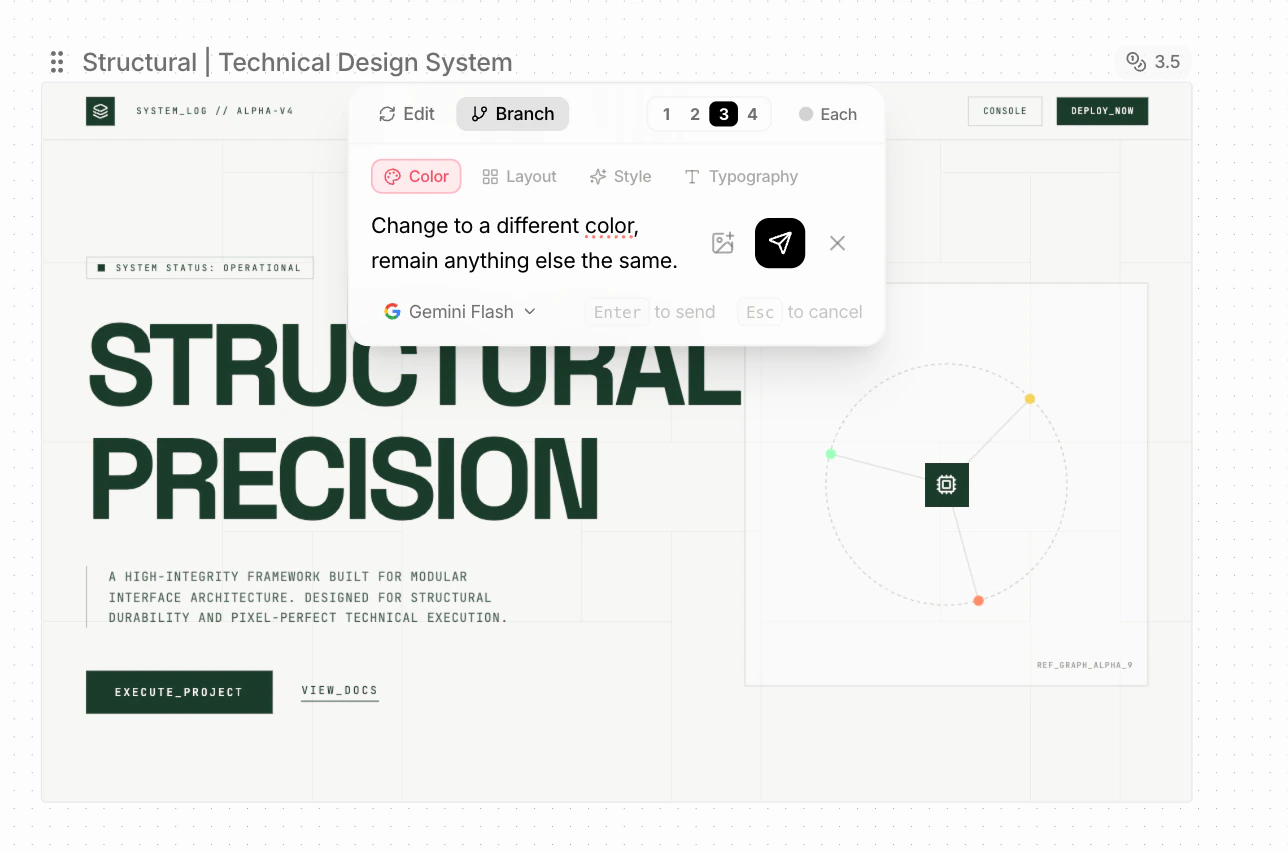
When Each is enabled:- You can write a different prompt per branch
- Each branch is generated based on its own prompt
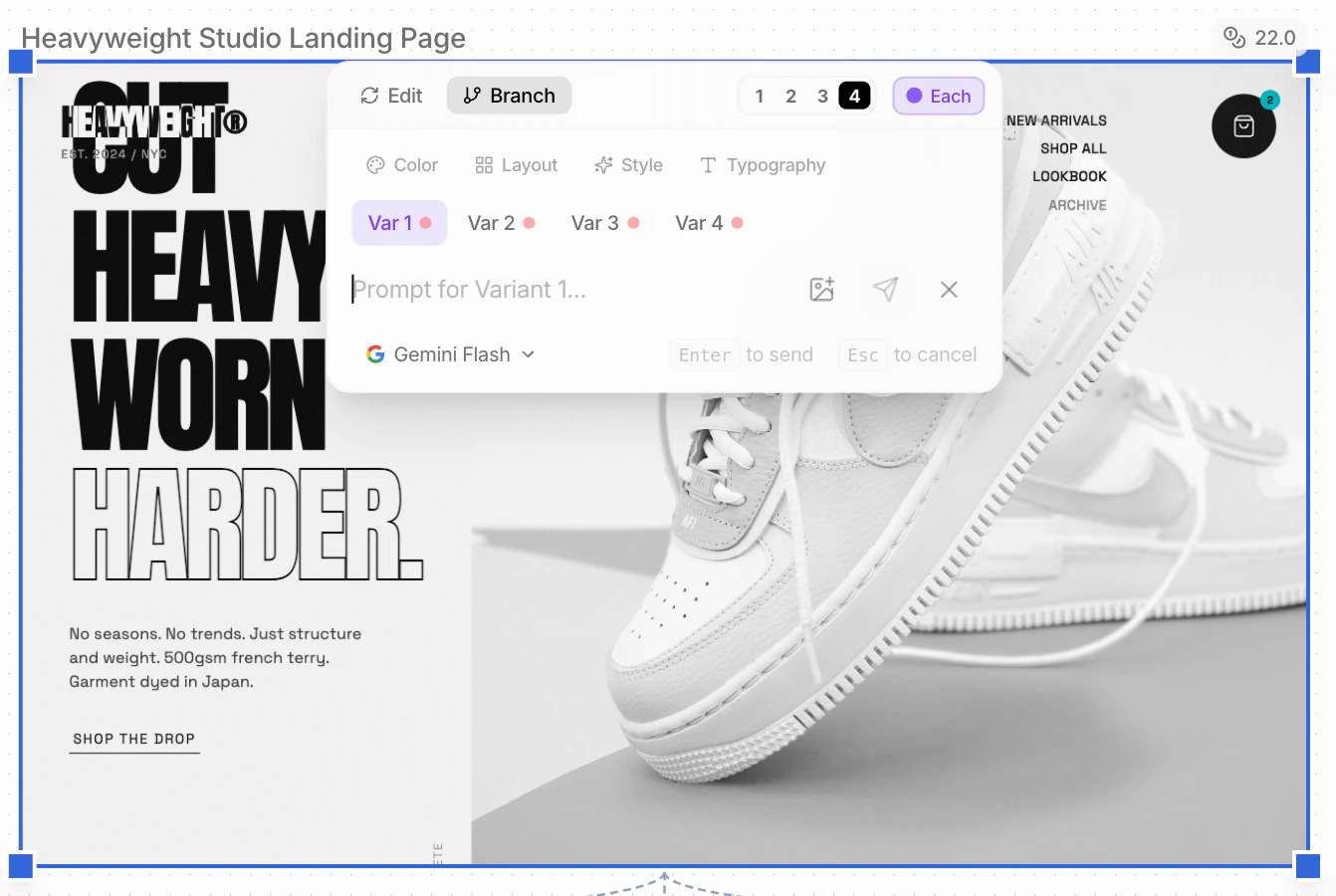
Model Selection
Default model: Gemini Flash- Most cost-efficient option
- Recommended for early-stage iteration and exploration