

Use the + button to add new elements to your canvas. This is where exploration starts—designs, references, structure, and ideas all live together in one space.Documentation Index
Fetch the complete documentation index at: https://docs.superdesign.dev/llms.txt
Use this file to discover all available pages before exploring further.
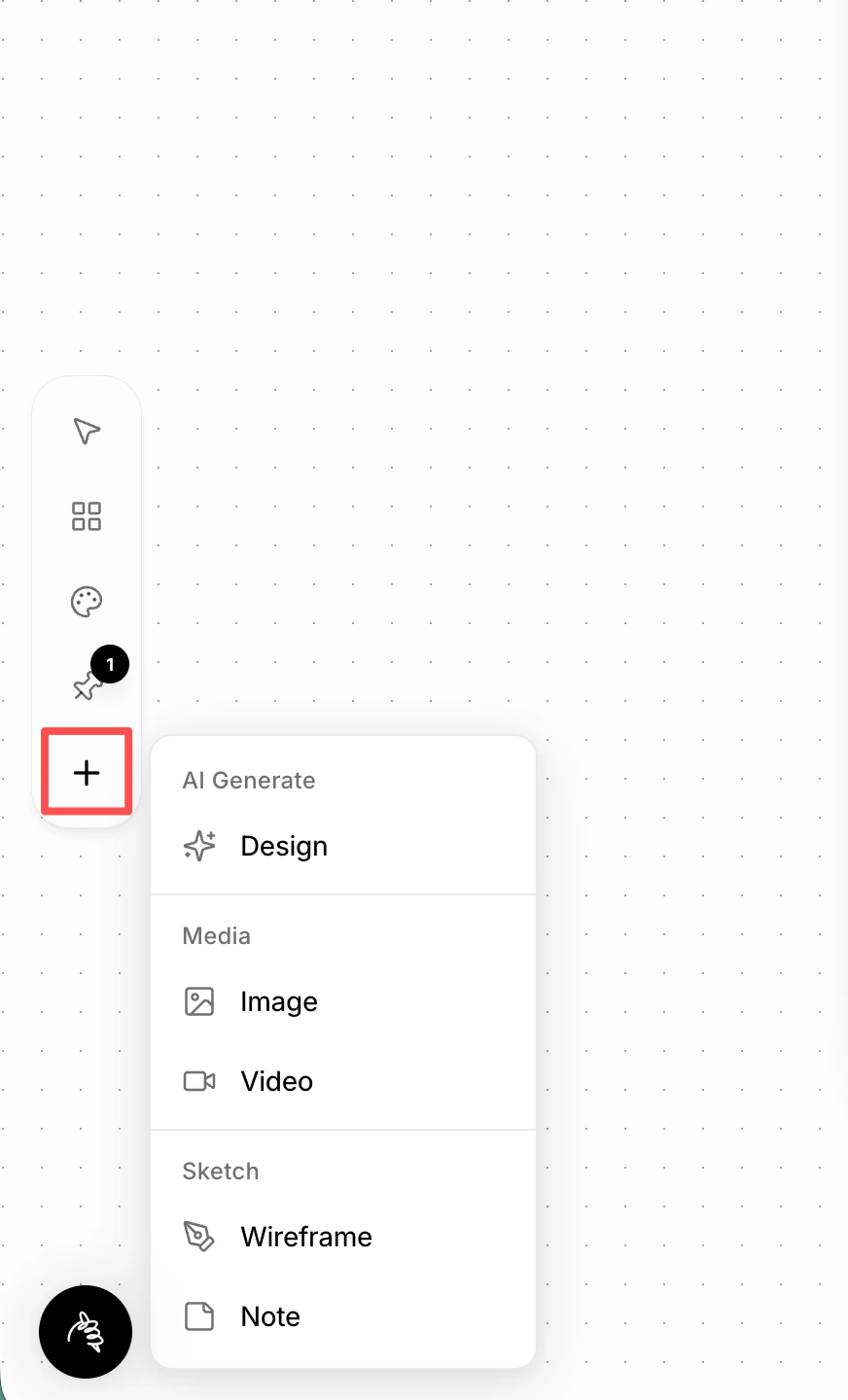
1. Design
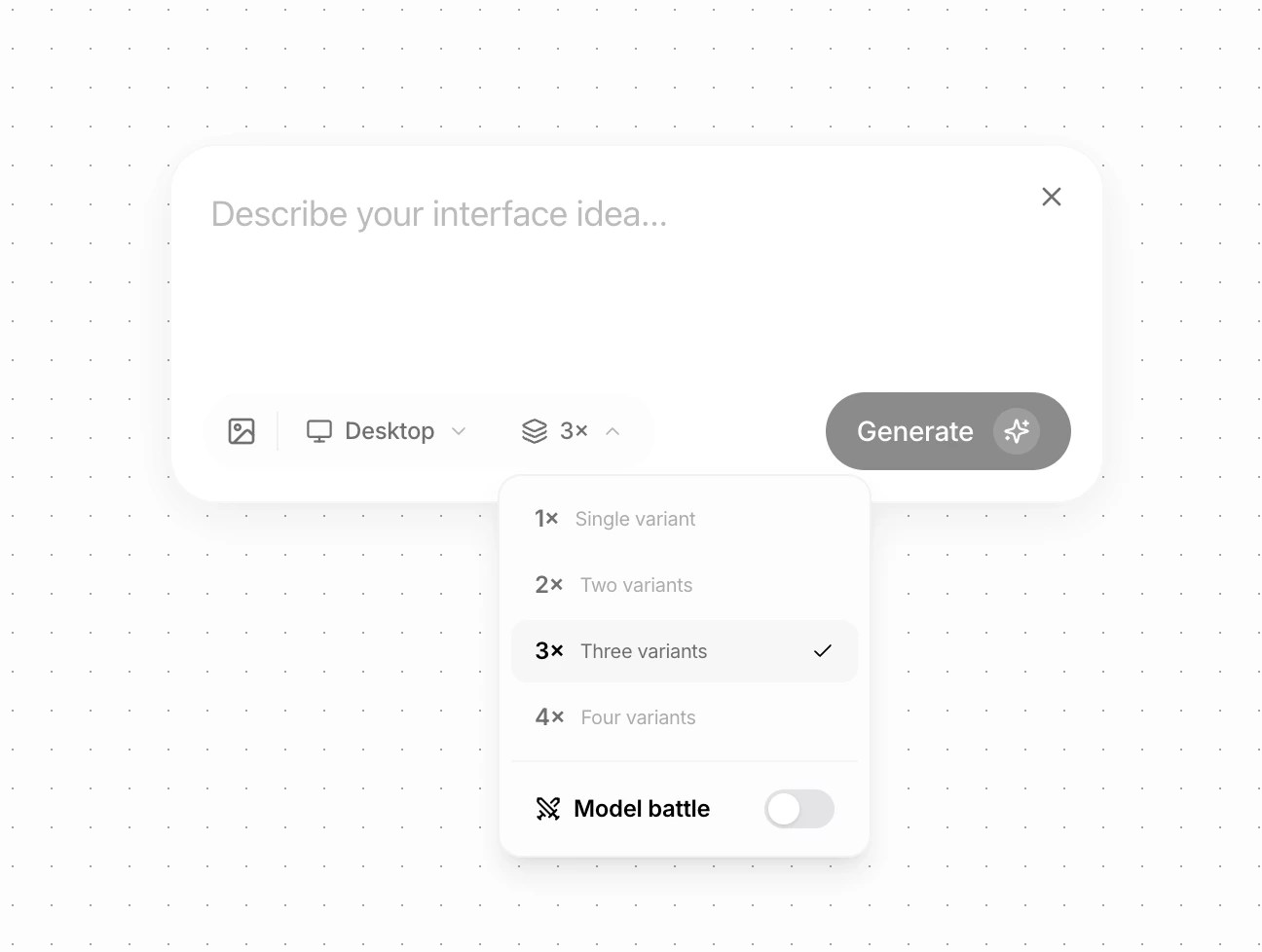
Create a new AI-generated design, best used for exploration and iteration.- Choose the primary device (Desktop, Mobile, etc.) from the dropdown
- Select how many variations you want (1–4)
- Enable Model Battle to generate designs from different models using the same prompt
- Compare layouts, styles, and directions side by side
2. Image / Video
Add images or videos directly to your canvas. You can use them as:- Inspiration — mood, style, and references you may pin later
- Design assets that the agent can place into layouts
3. Wireframe
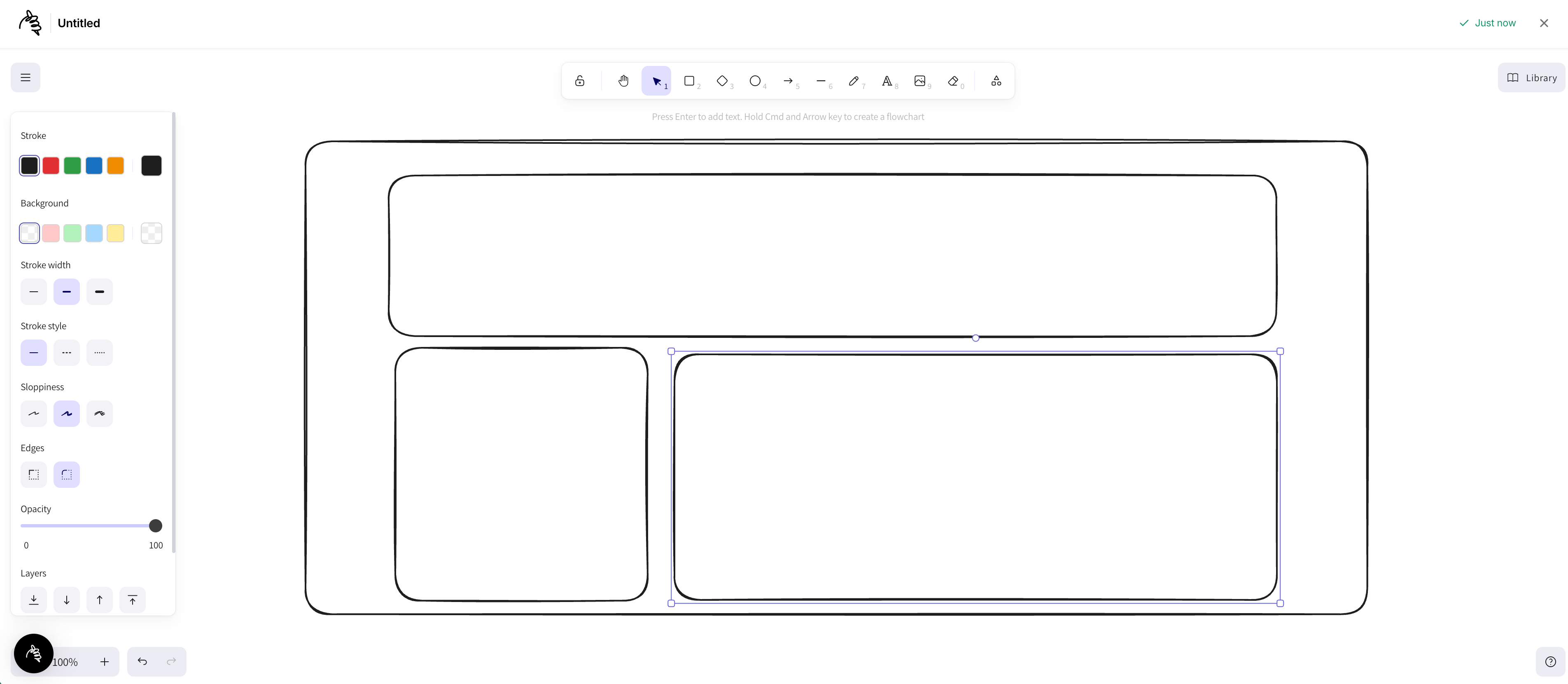
Draw a wireframe to communicate layout and structure more clearly to the agent.- Sketch sections, blocks, and hierarchy
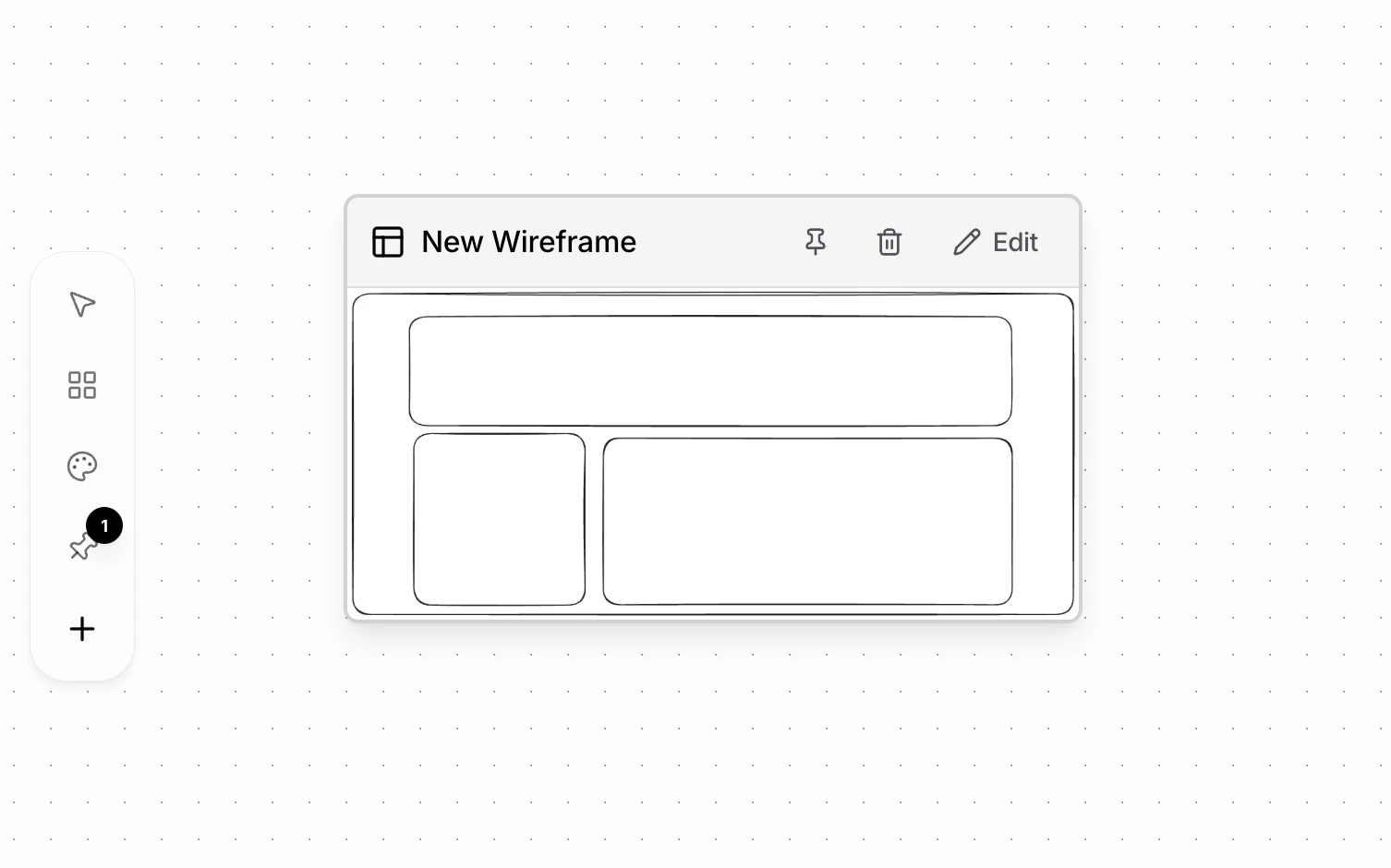
- Wireframes are saved automatically as components on the canvas
- You can edit or pin them later as design context
4. Note
Add a simple note to capture ideas and thoughts.- Use it like a sticky note on your desk
- Write inspirations, reminders, or rough ideas
- Notes don’t affect design unless you choose to pin them