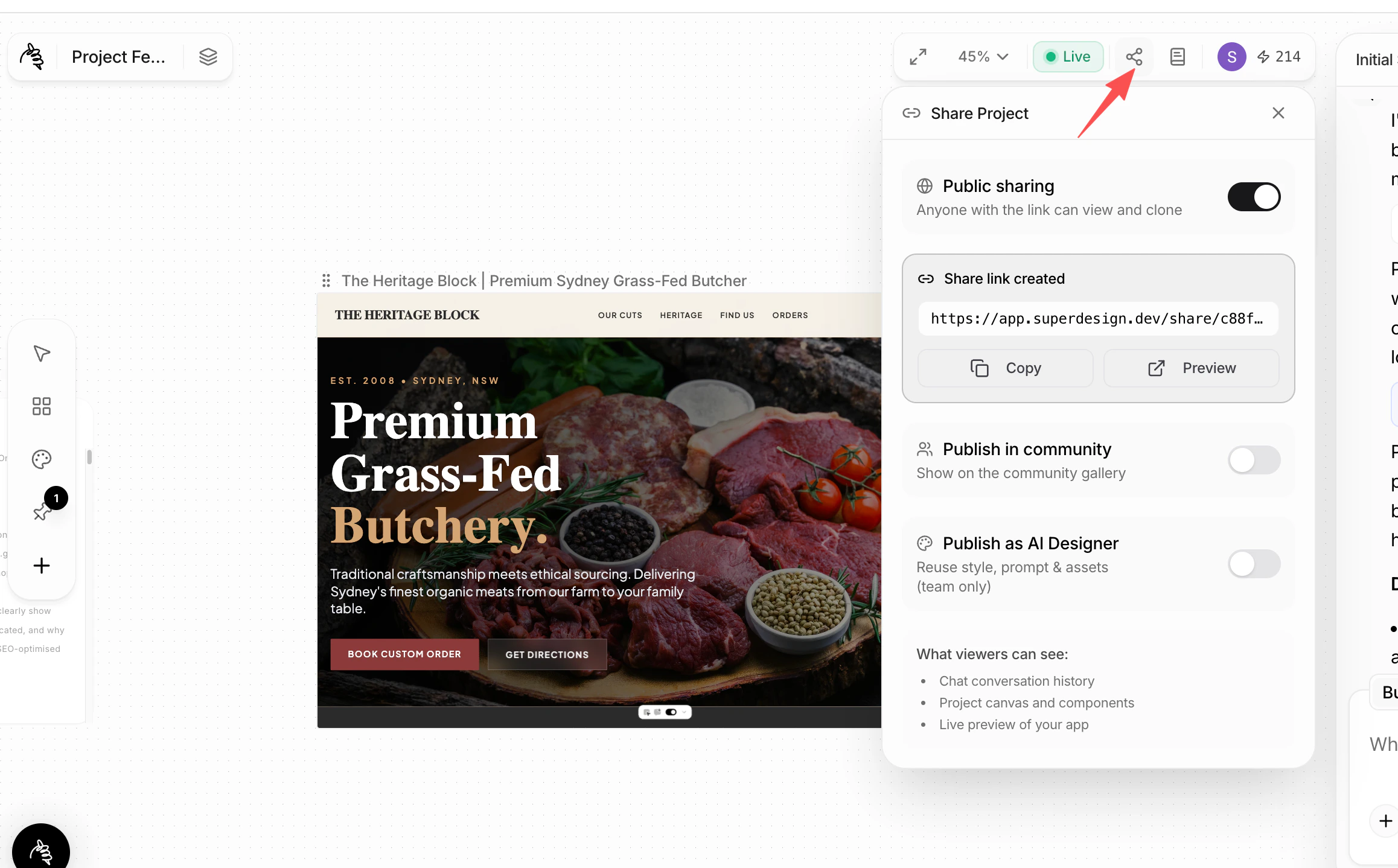
The canvas is where all your designs, components, and ideas live. These are the core actions you’ll use to manage frames, navigate views, and collaborate.Documentation Index
Fetch the complete documentation index at: https://docs.superdesign.dev/llms.txt
Use this file to discover all available pages before exploring further.
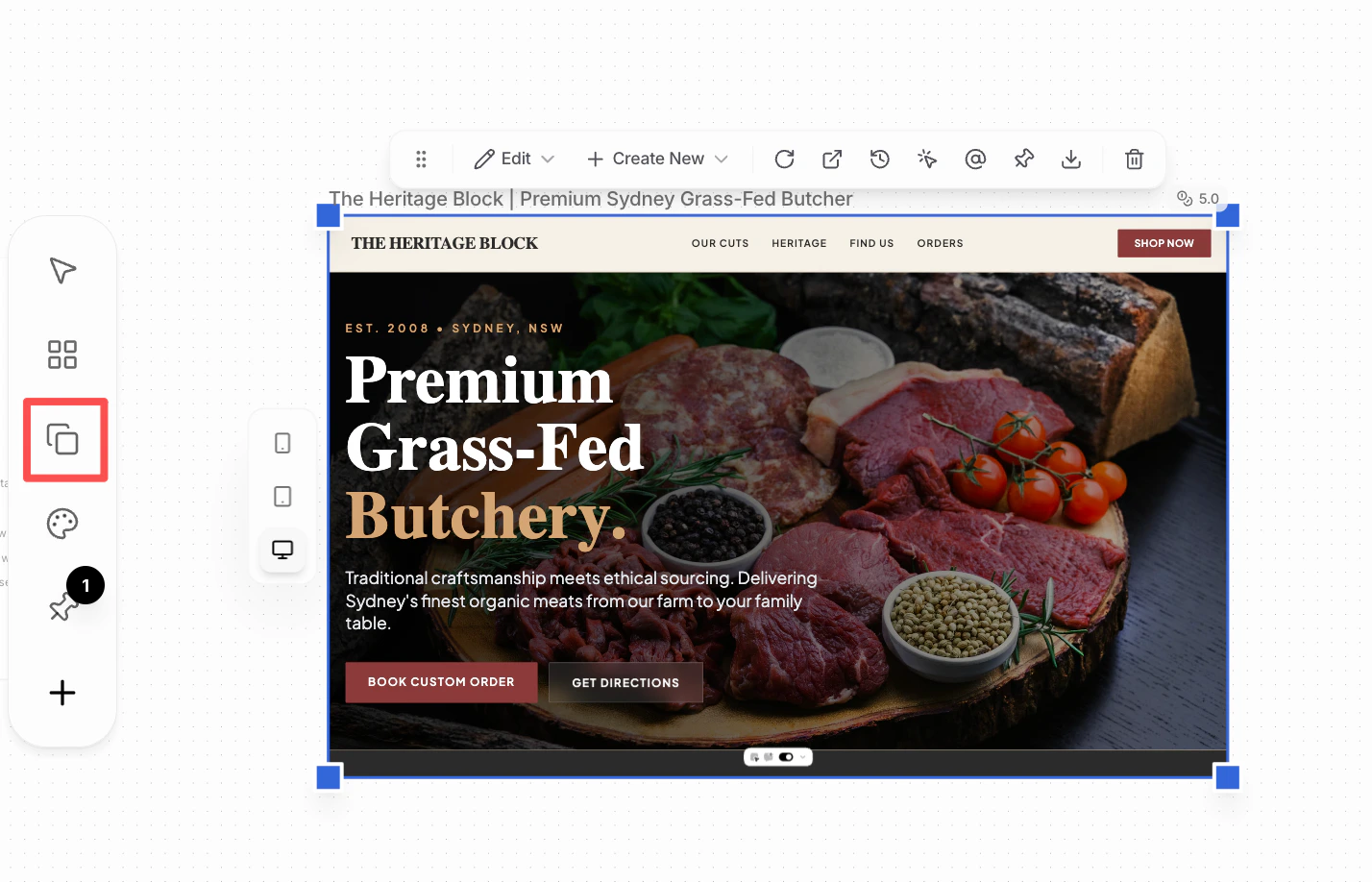
1. Duplicate a Component
- Select the frame you want to duplicate
- Click the Duplicate button in the left menu bar
- A copy of the frame is created on the canvas
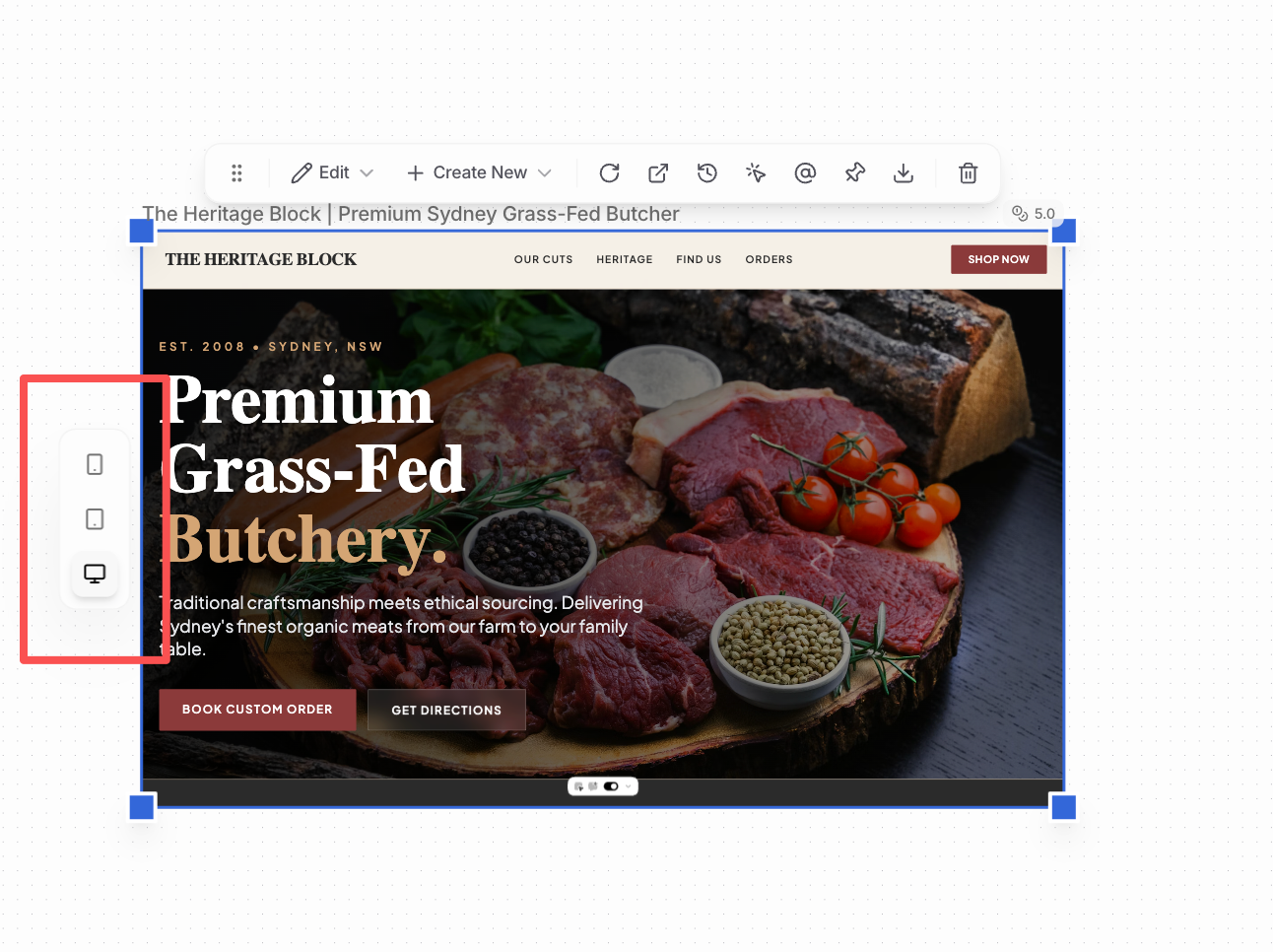
2. Change the View (Desktop / iPad / Mobile)
- Use the device switcher on the left side of the canvas
- Toggle between Desktop, Tablet, and Mobile views
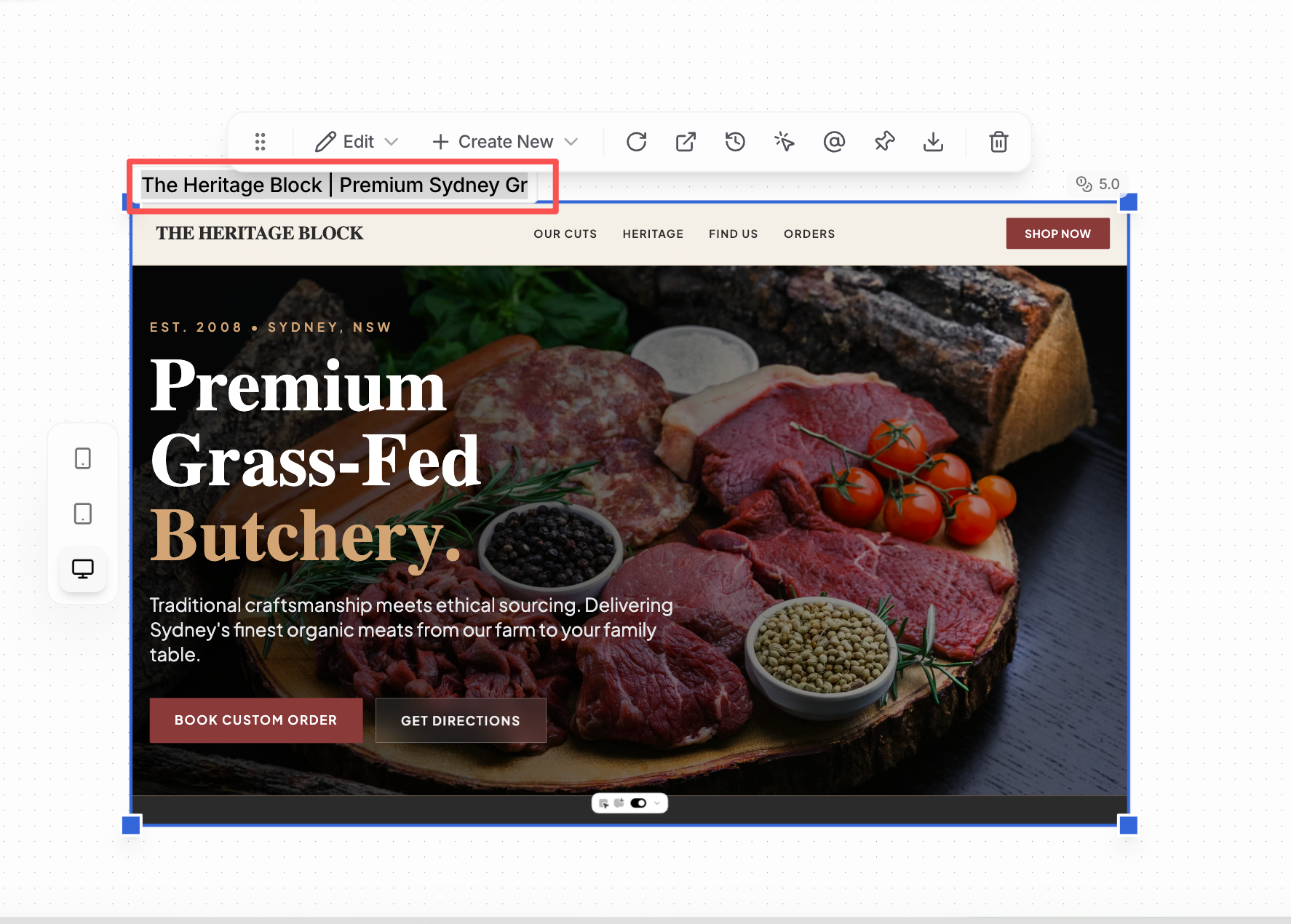
3. Rename a Component
- Click the frame name at the top of the canvas
- Edit the name directly
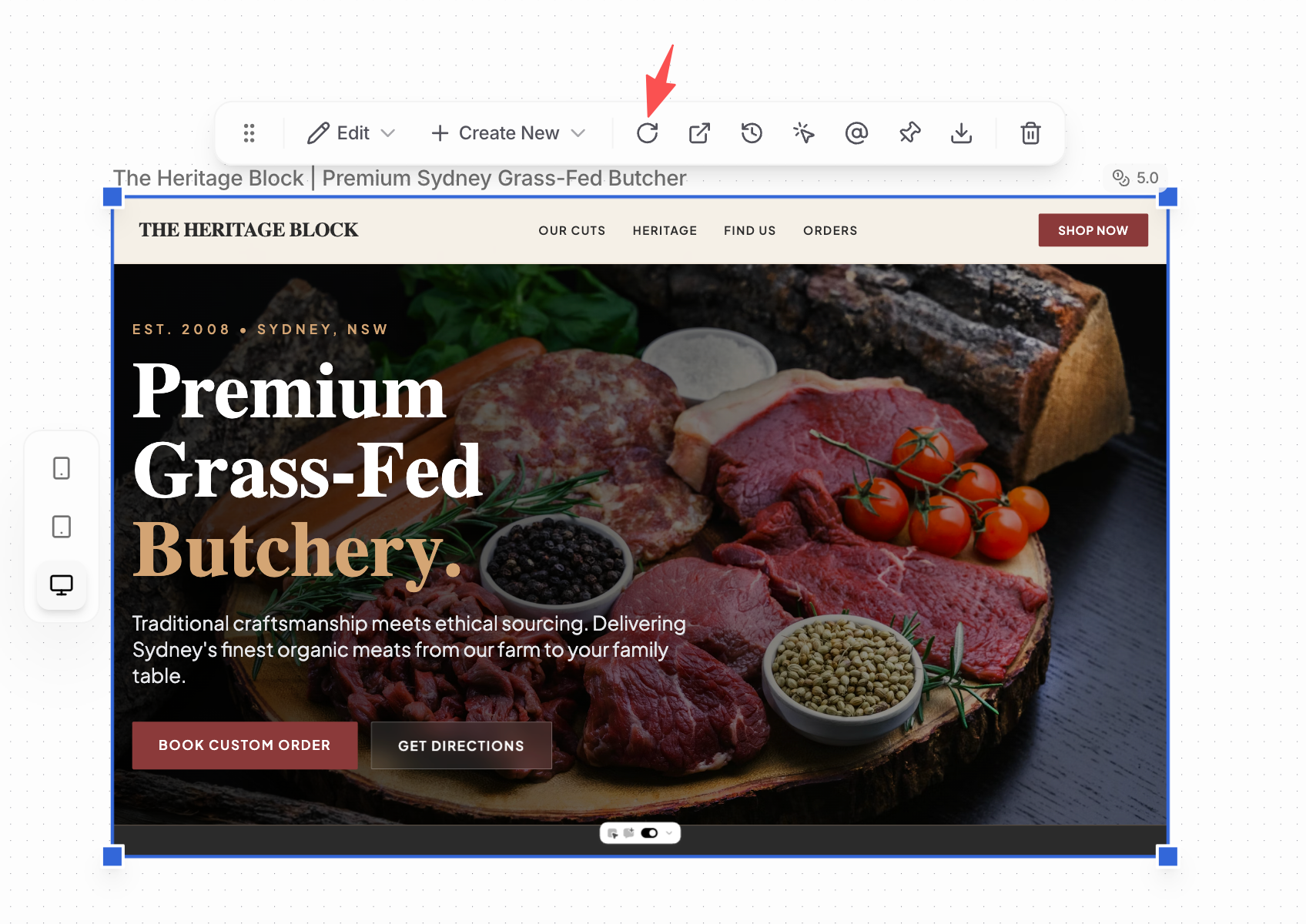
4. Refresh the Frame
Click the Refresh icon in the top toolbar. Use this if:- The frame isn’t loading
- You see an error
- Something looks out of sync
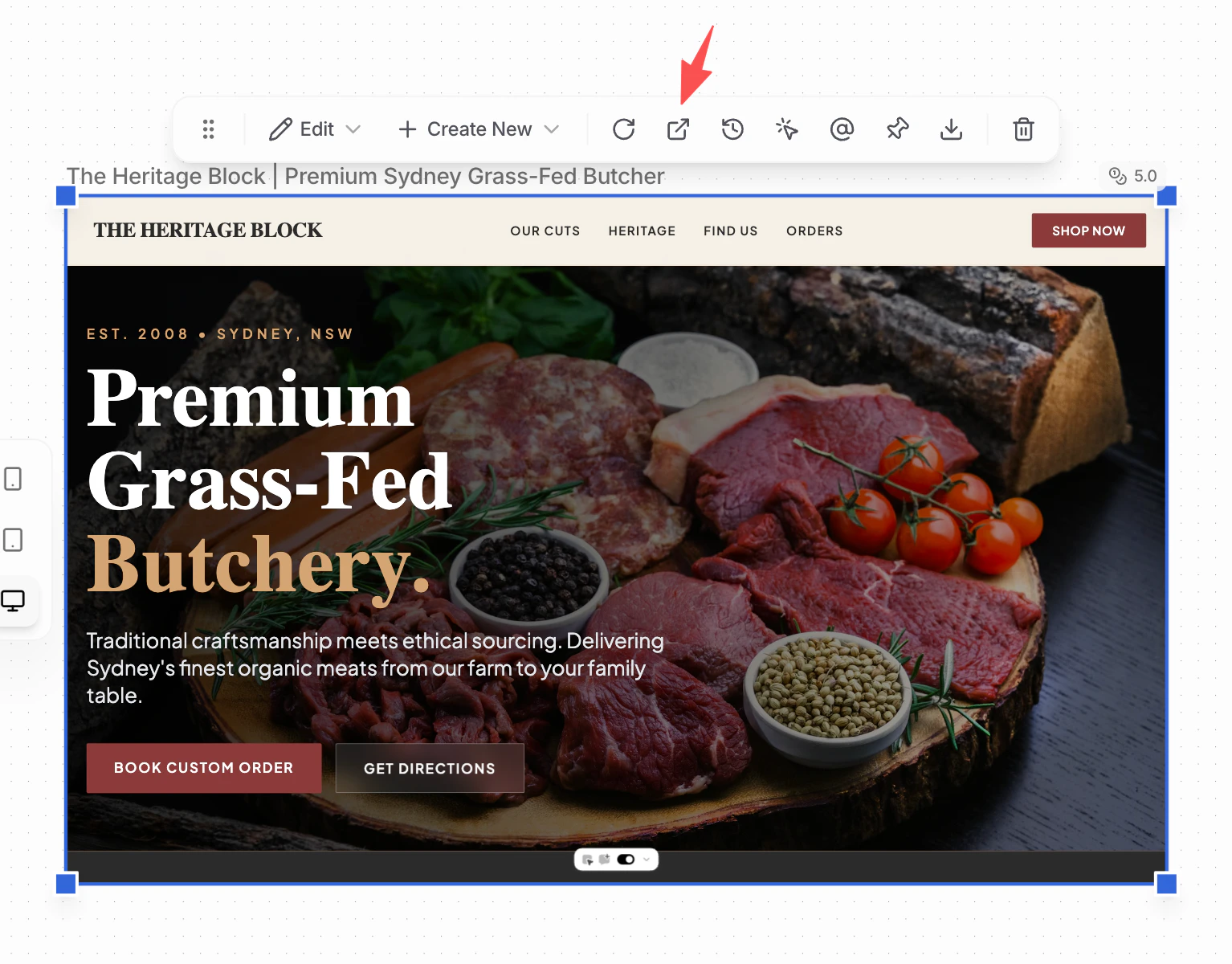
5. View in a New Tab
- Click Open in new tab
- The frame opens as a standalone page
- View it in a real browser environment
- Share the link with others (they’ll only see this frame, not the full project)
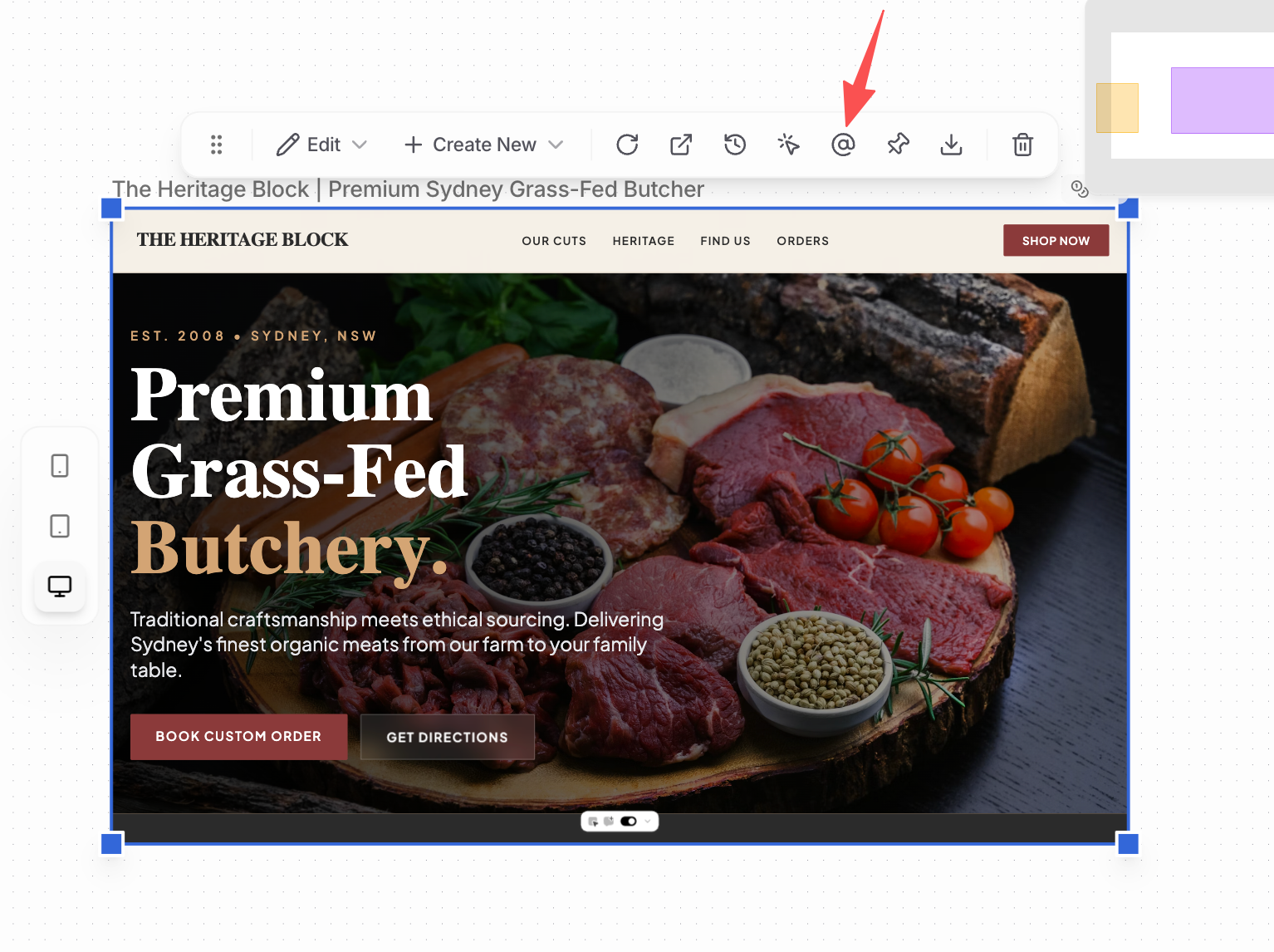
6. @ Mention a Frame in Chat
- Use @ to mention a specific frame in chat
- The agent will know exactly which frame you’re referring to
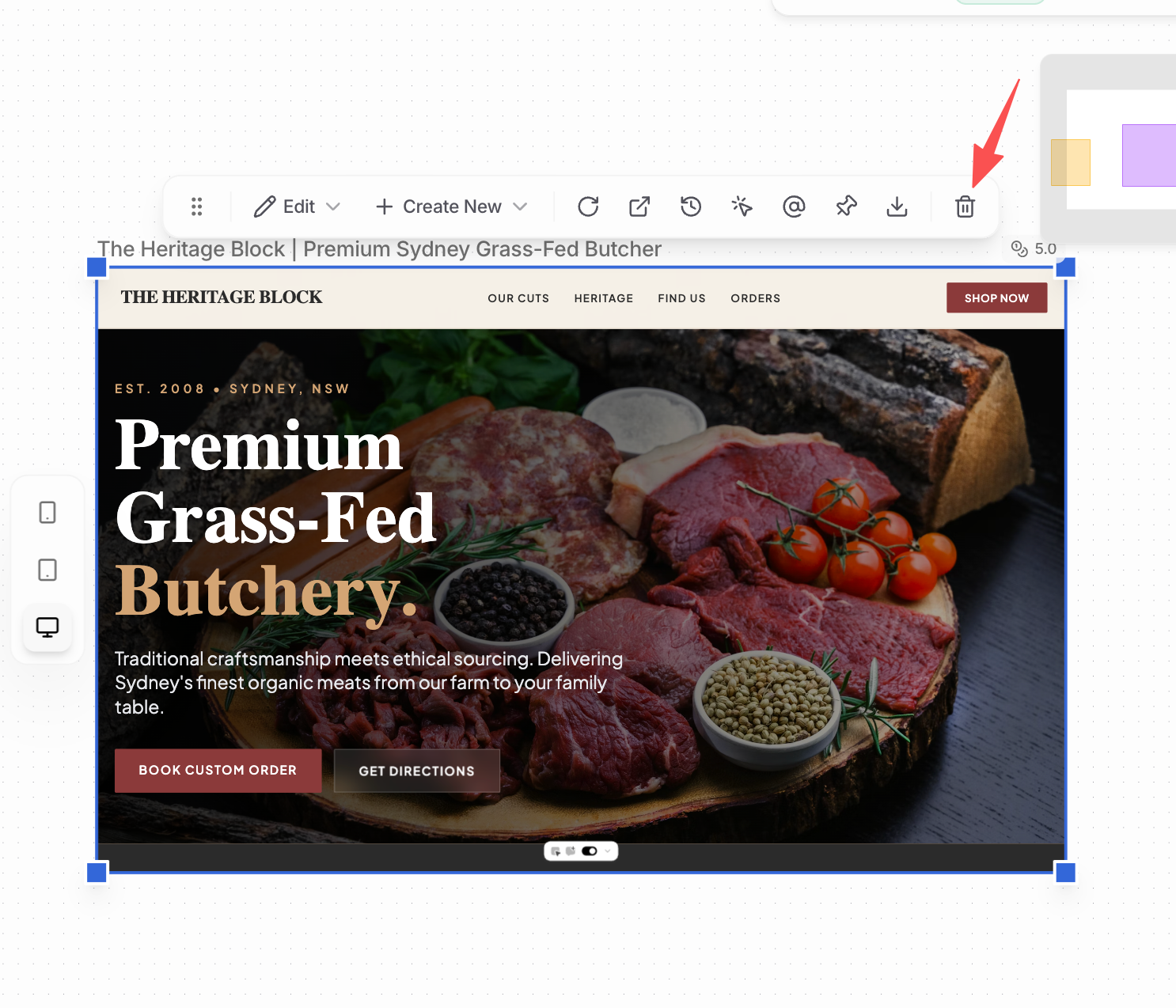
7. Delete a Component
- Select the frame
- Click the Delete icon
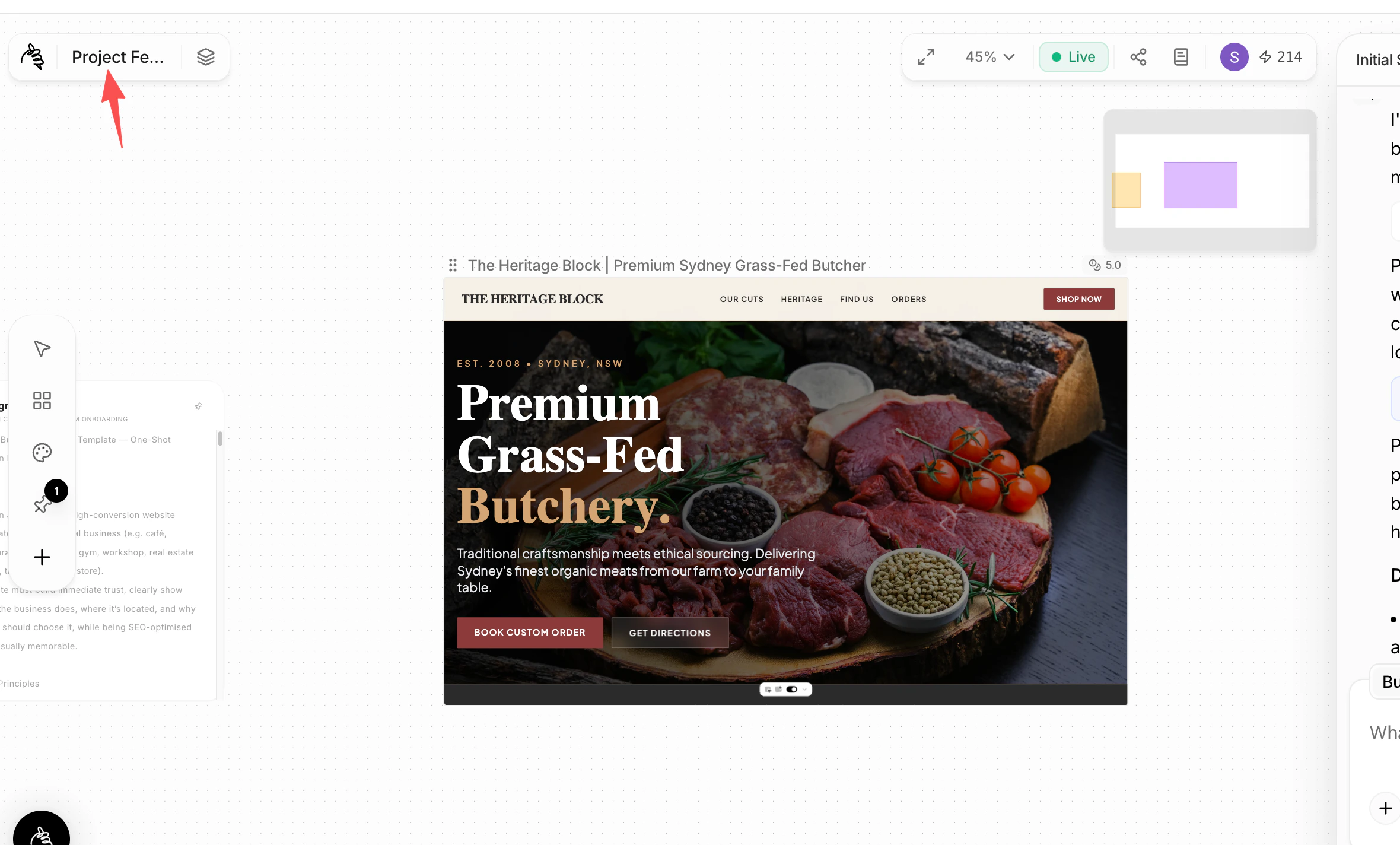
8. Change the Project Name
- Click the project name at the top of the canvas
- Rename it directly
9. Hide a Frame
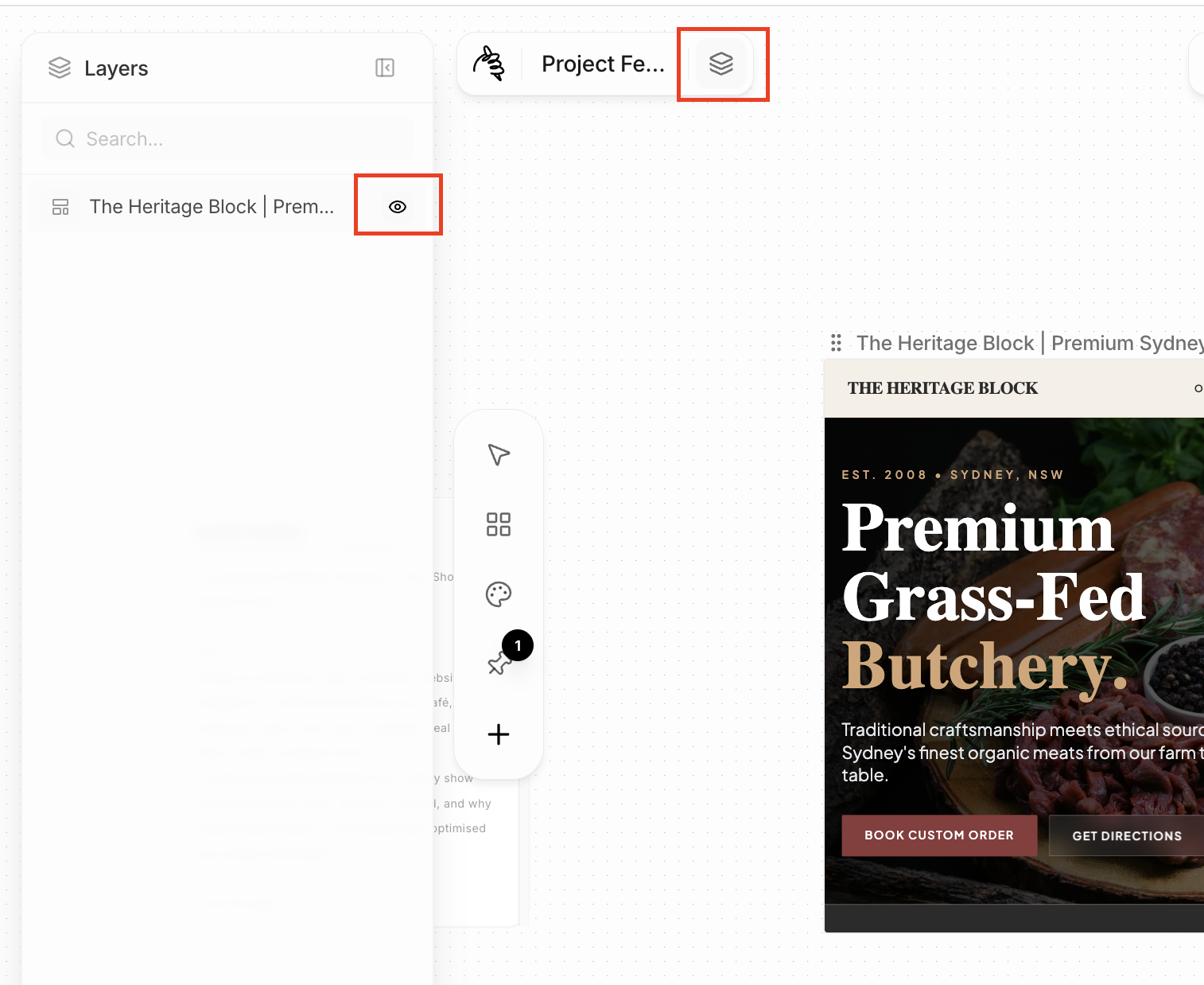
- Click the Layers icon next to the project name
- Find the frame you want to hide
- Click the eye icon
10. Share the Project
Project sharing gives access to the entire canvas, including:- Chat conversation history
- Live preview
- All frames and components
- Public sharing — Share via link. Anyone with the link can view and clone.
- Publish in community — Your project appears on the community homepage.
- Publish as AI Designer (Pro only) — Share your style, prompt, and assets. Your team can reuse them as a design baseline.