

Parallel Design Generation lets you run multiple AI agents at the same time, each working on its own idea, variation, or task. This is the fastest way to explore different directions without waiting for one generation to finish before starting another. Use it when you want to:Documentation Index
Fetch the complete documentation index at: https://docs.superdesign.dev/llms.txt
Use this file to discover all available pages before exploring further.
- Compare multiple layout ideas side-by-side
- Generate different styles in parallel (e.g., dark mode vs hand-drawn vs minimal)
- Ask the AI to perform different tasks simultaneously
- Keep one design generating while refining another
- Speed up your workflow and avoid blocking on long tasks
How to Start a Parallel Session
There are two ways to start parallel design generations in Superdesign. Choose the option that fits your workflow.Option A: Ask the Agent Directly
You can request multiple outputs inside a single conversation by prompting:- “Give me two different layouts.”
- “Create three style variations.”
- “Generate a dark mode version and a playful hand-drawn version.”
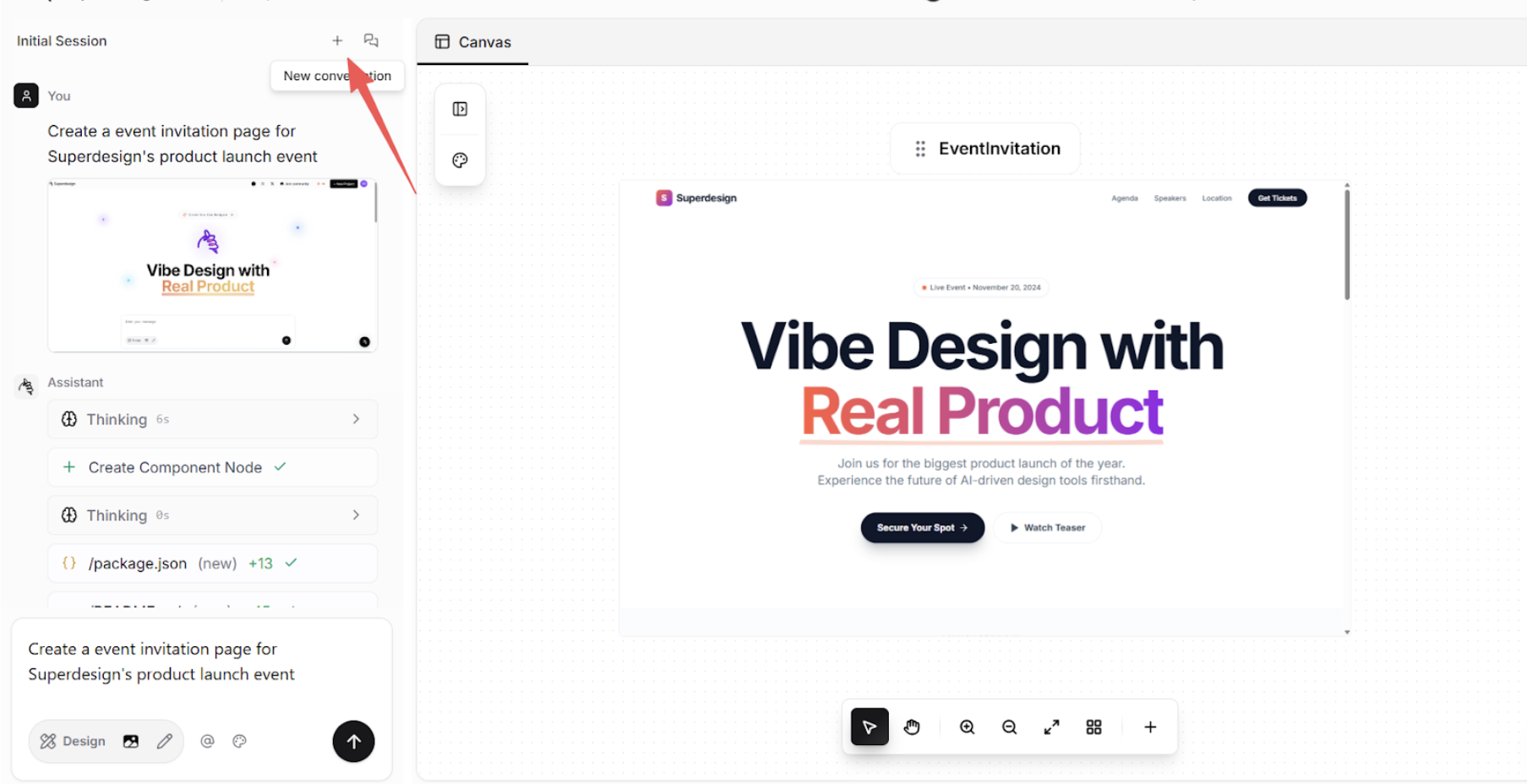
Option B: Create Multiple Conversations
Click New Conversation
At the top-right of the chat panel, click the + icon. This opens a new parallel conversation inside the same project.
Example Workflow
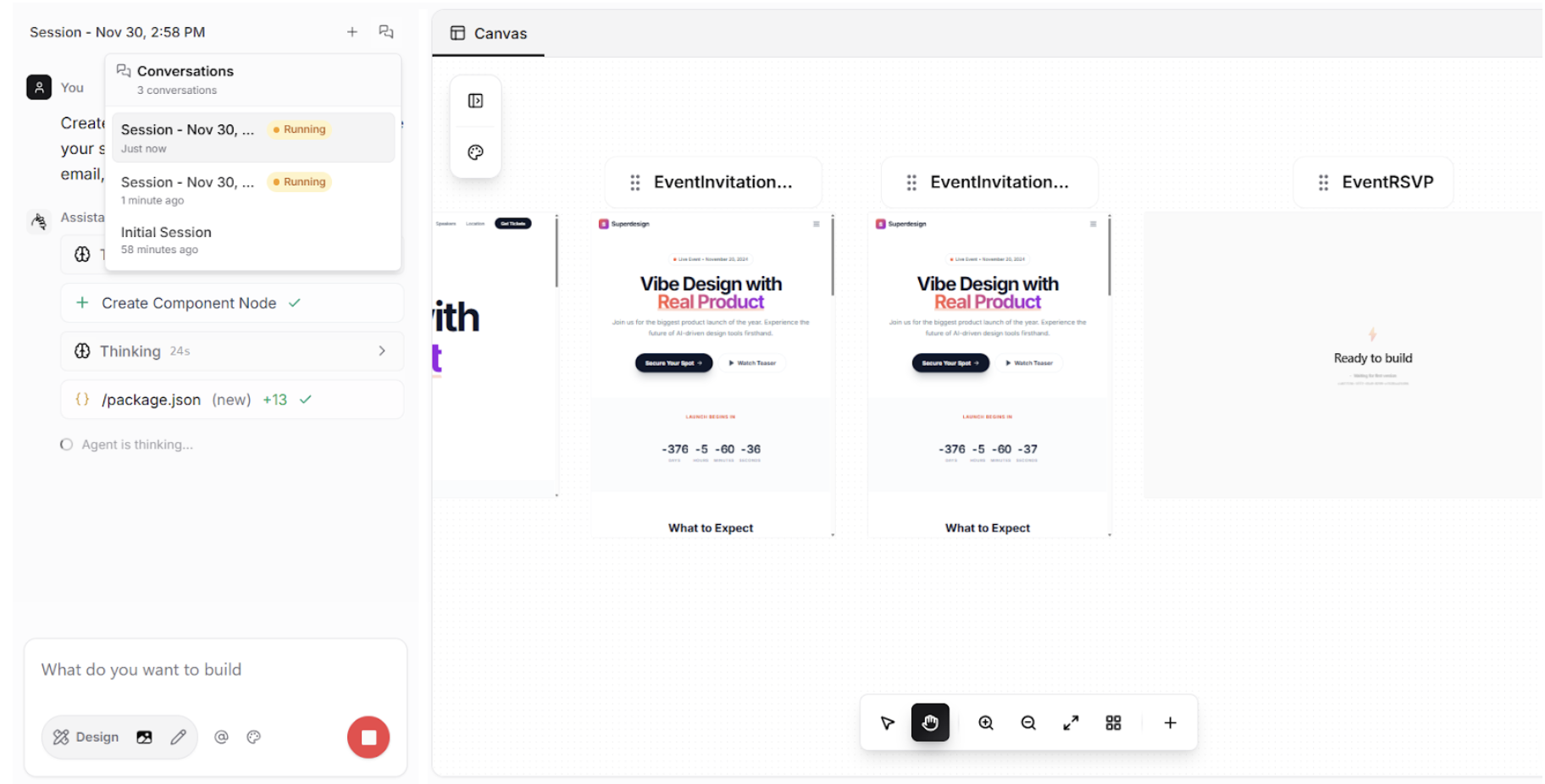
In this example, we ask Superdesign to generate two different layout styles and create an RSVP page, all at the same time.Start Multiple Conversations
- Conversation A → “Generate this page in dark style and hand drawing style”
- Conversation B → “Create a standalone RSVP form page that opens when clicking Secure Your Spot.”
Canvas Updates in Background
You may notice that your design on the canvas doesn’t change right away. This is expected. Each agent is still generating in the background, and the UI will only update once that specific session completes.