

Superdesign offers two modes when prompting the AI assistant: Design Mode and Wireframe Mode. Each mode is optimized for a different stage of your workflow—allowing you to move from fast idea exploration to polished, production-ready UI.
How to Switch Modes
Open Mode Selector
In the message bar, click the Mode Selector (the button labeled Design or Wireframe).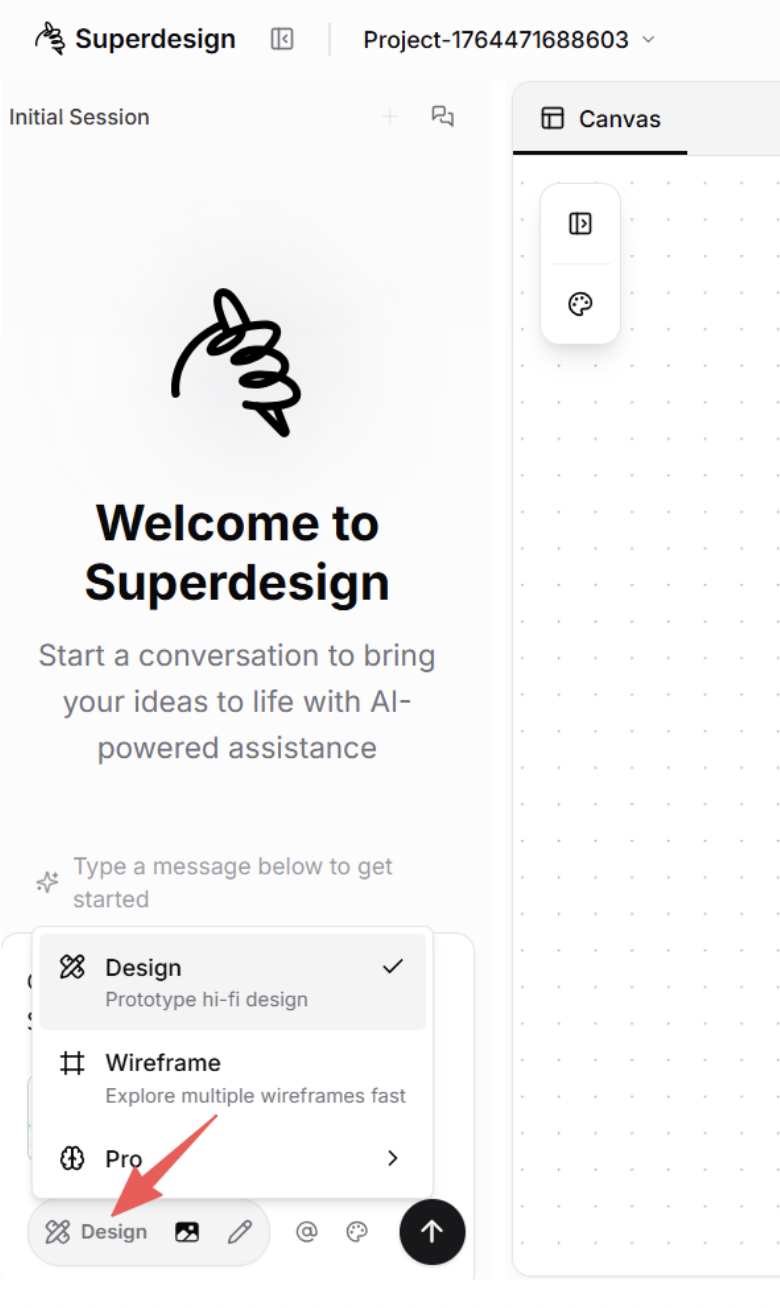
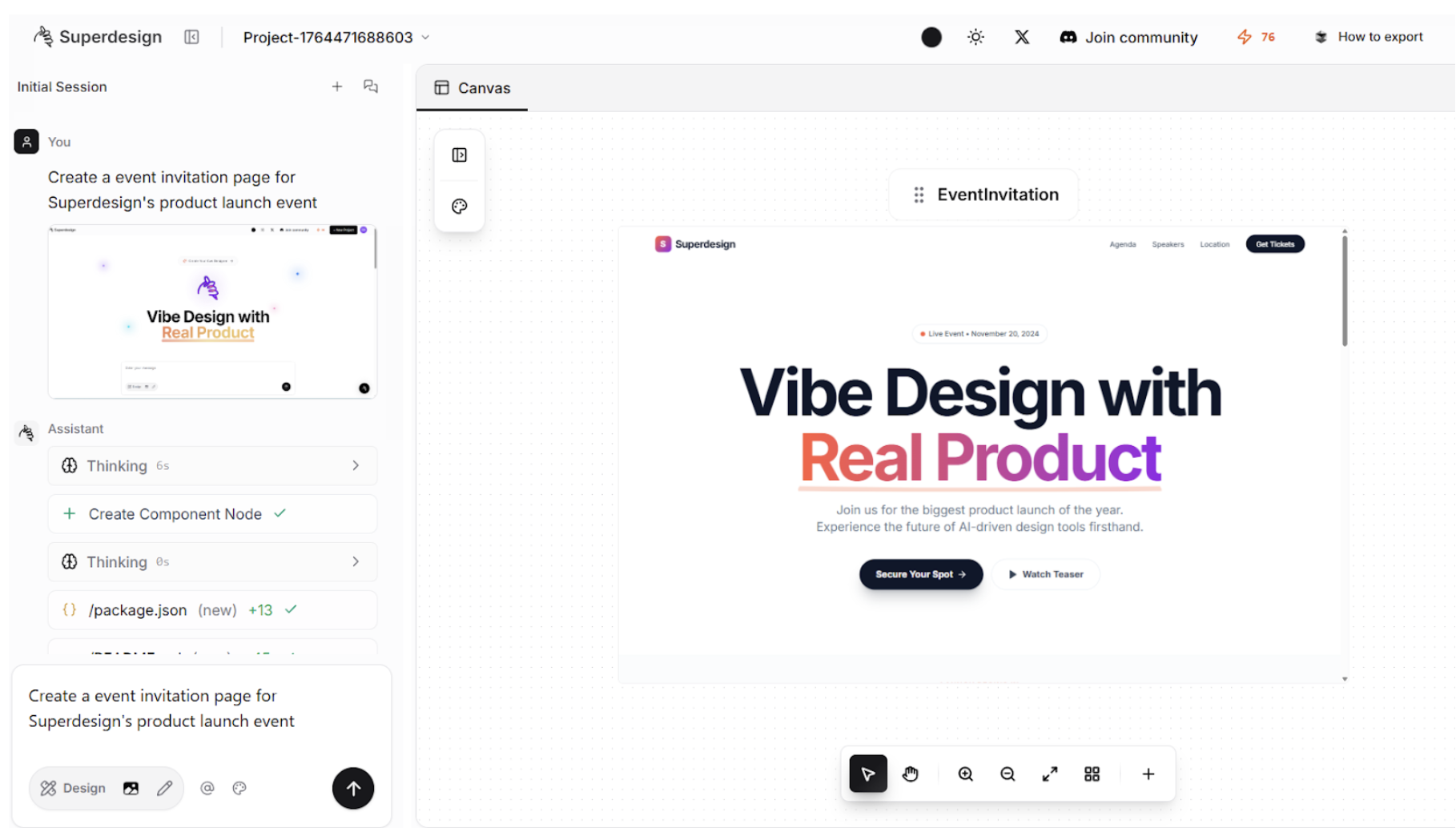
Design Mode
Design Mode generates high-fidelity designs, complete with real components, typography, spacing, layout structure, colors, and visual styling.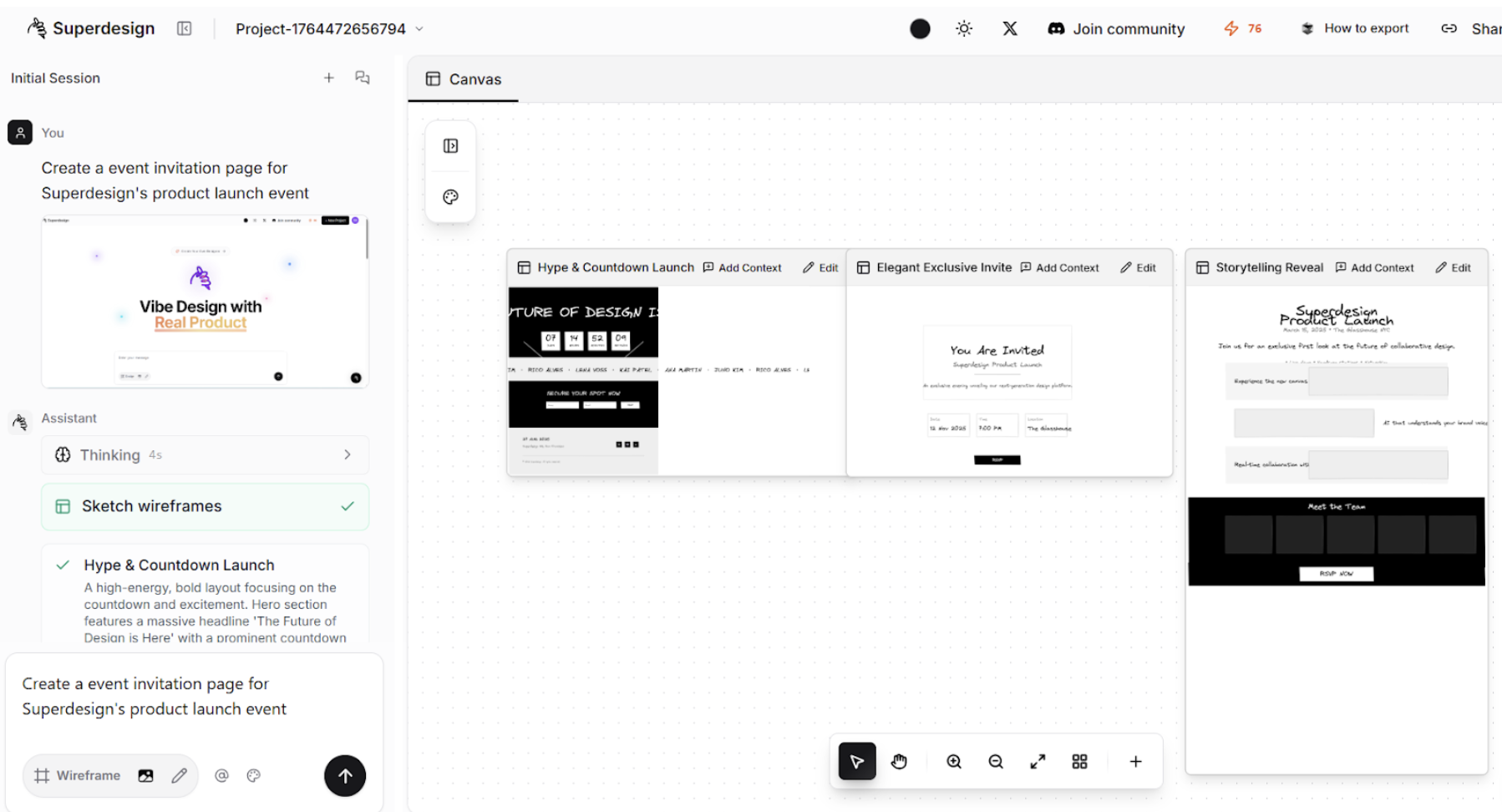
- Creating polished UI
- Turning ideas into production-ready layouts
- Designing marketing pages, SaaS dashboards, product flows
- Iterating with the AI to refine look and feel
- Exporting clean Next.js code
Wireframe Mode
Wireframe Mode provides minimal styling but focuses on exploring multiple variations fast, with lower token usage and multiple layout or concept options in a single run. It’s great for exploring structure before committing to UI.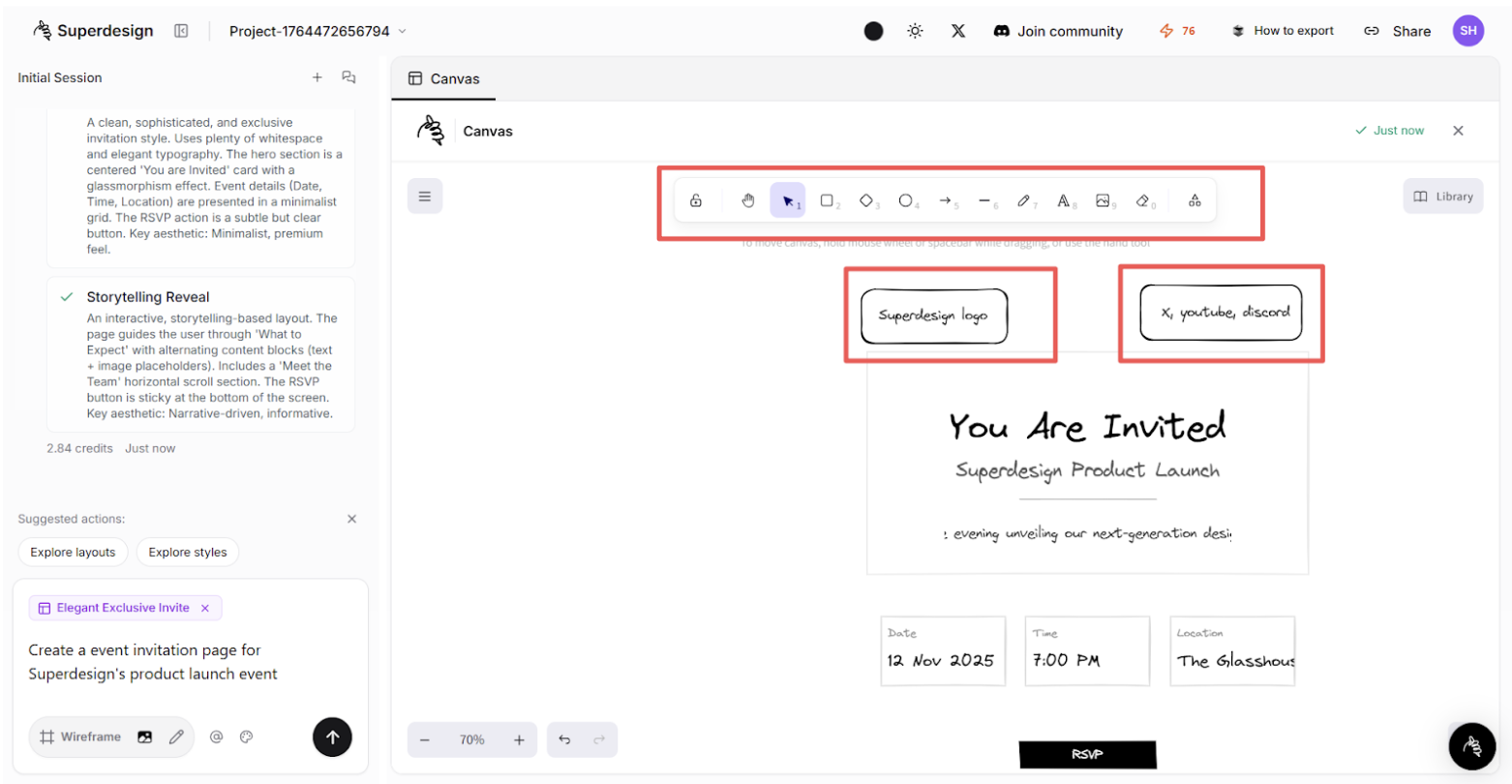
- Early-stage brainstorming
- Getting multiple layout directions
- Rapid iteration
- Creating product concepts, flows, or page structures
- “Idea → options → pick your favorite → refine in Design Mode”
From Wireframe to Design
After selecting a wireframe you like, you have three options:Continue Editing
Open the wireframe and continue editing. You can refine layout, add context, or modify sections before turning it into a real UI.
Generate Design
Switch back to Design mode and prompt the agent to generate a real page from your wireframe.
Close Wireframe
Close the wireframe and you will see the real page created on your canvas.