

How to Use Add Annotation
1
Click Add Annotation
After selecting a frame on the canvas, click the Add Annotation icon in the top toolbar. Superdesign will automatically take a screenshot of your selected frame and open it in the annotation editor.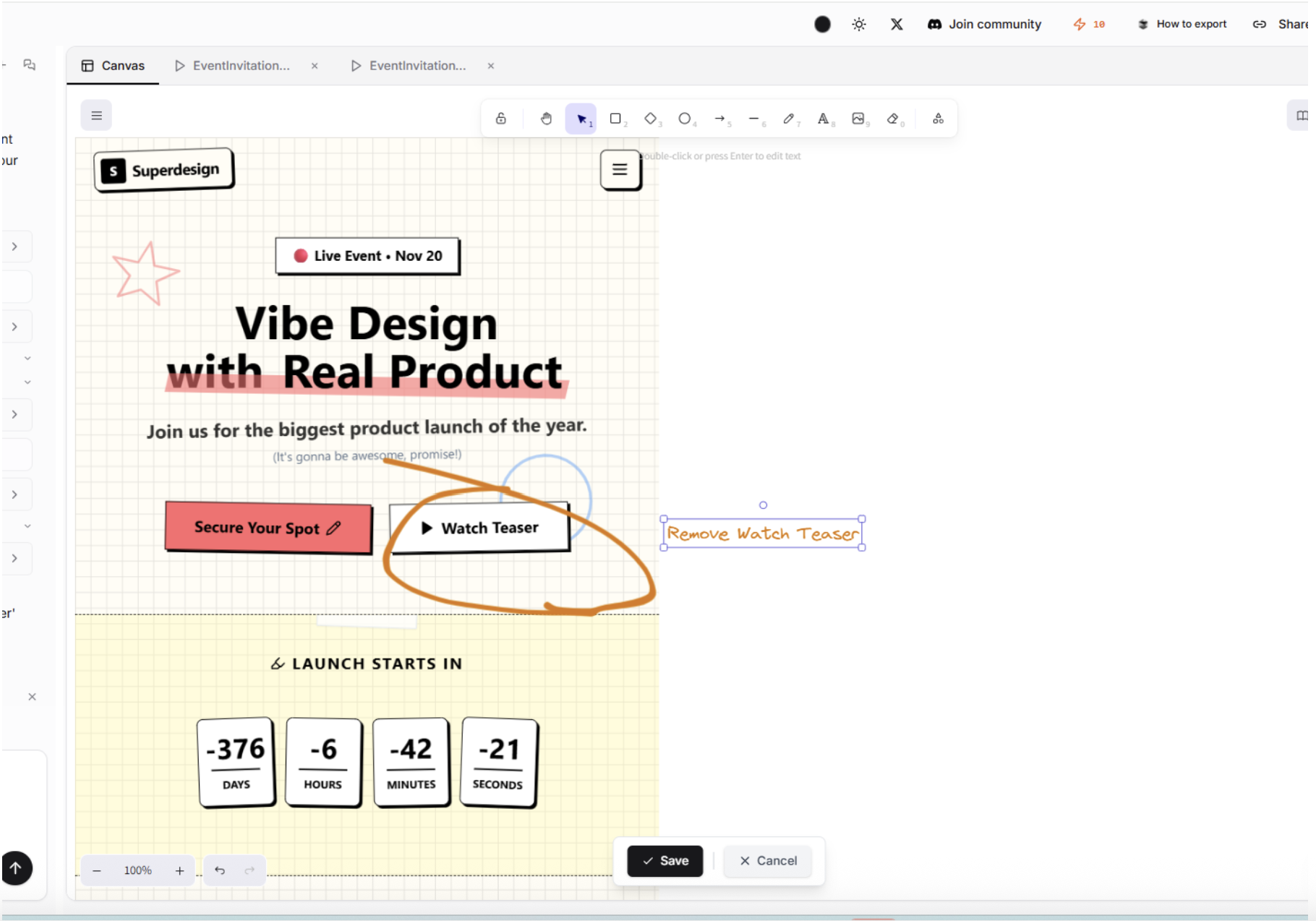
2
Draw on the Screenshot
Use annotation tools to:
- Circle components
- Cross out elements you want removed
- Highlight problem areas
- Add arrows or emphasis
- Write short text notes directly on the screenshot
3
Click Save
When you click Save, Superdesign packages your screenshot (with annotations) and sends it to the AI agent.
4
Continue Prompting
You can now add further instructions in the chat. Superdesign will combine:
- Your prompt
- The annotated screenshot
- The frame context