> ## Documentation Index
> Fetch the complete documentation index at: https://docs.superdesign.dev/llms.txt
> Use this file to discover all available pages before exploring further.
# Add Context
> Use Pinned Context to persist design rules, brand guidelines, and reference designs across all prompts and iterations
## Pinned Context
Pinned Context lets you persist important information in the agent's memory, so it's always applied across designs, iterations, and prompts.
Use it to:
* Define design rules or constraints
* Lock in brand or audience context
* Reference an existing design you want future designs to follow
## What You Can Pin
There are two types of pinned context:
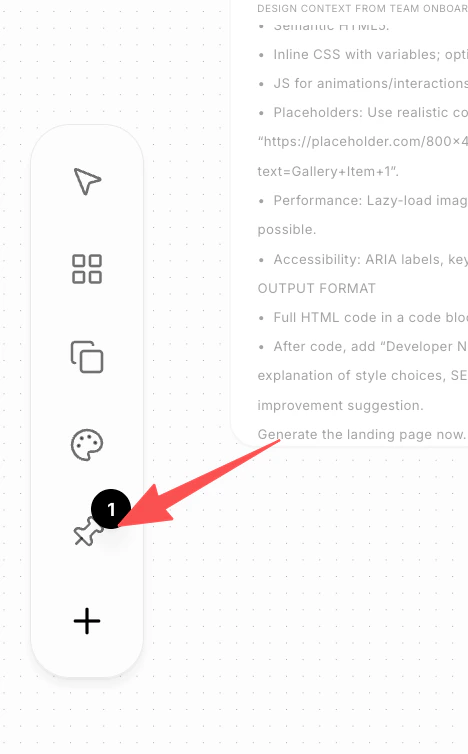
### 1. Write a Design Note
Create a text-based note that the agent will always reference.
Use this for:
* Brand guidelines
* Target audience descriptions
* Design principles or layout rules
Add an optional instruction to clarify intent (e.g. "Use this as reference for all designs").
This is best for explicit, written guidance you want consistently applied.
 ### 2. Pin a Design Draft
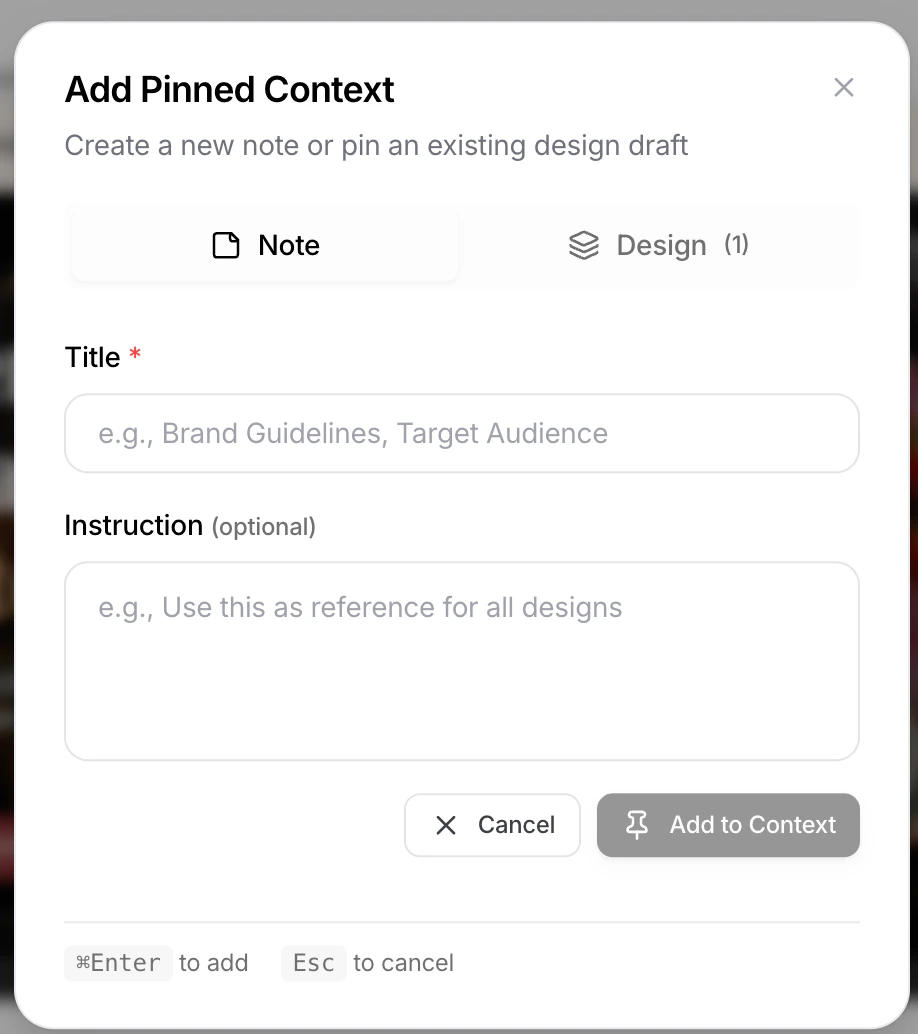
You can pin an existing design draft and use it as a visual and structural reference for future designs.
When a design draft is pinned:
* The agent treats it as a reference design
* Layout, hierarchy, and visual direction may be reused
* An optional instruction helps clarify how strictly it should be followed
There are two ways to pin a design draft:
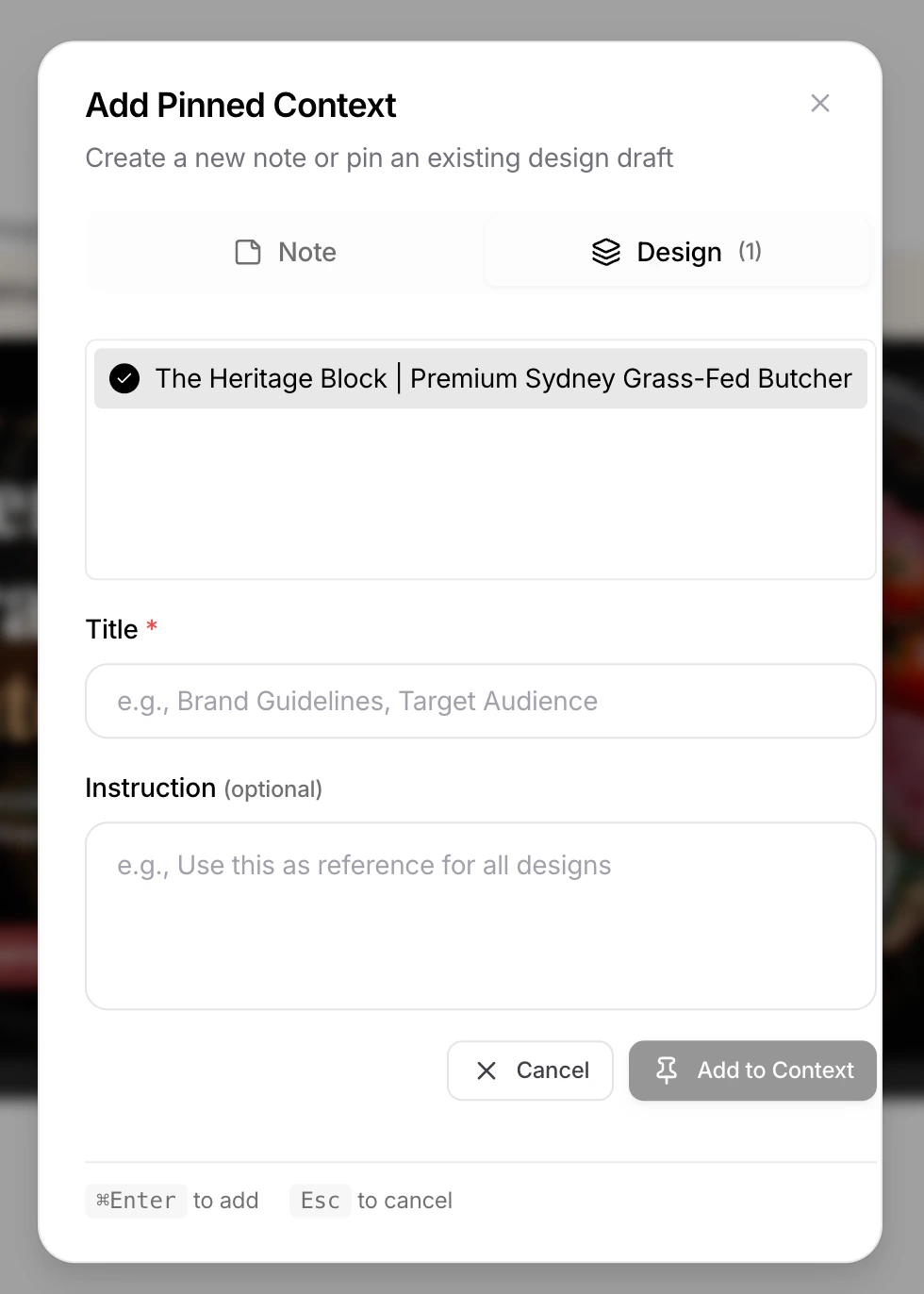
#### Option 1: Pin from the Pinned Context Menu
1. Open **Add Pinned Context**
2. Switch to the **Design** tab
3. Select one or more design drafts
4. Add an instruction (optional)
5. Click **Add to Context**
This is useful when you want to manage all pinned context in one place.
### 2. Pin a Design Draft
You can pin an existing design draft and use it as a visual and structural reference for future designs.
When a design draft is pinned:
* The agent treats it as a reference design
* Layout, hierarchy, and visual direction may be reused
* An optional instruction helps clarify how strictly it should be followed
There are two ways to pin a design draft:
#### Option 1: Pin from the Pinned Context Menu
1. Open **Add Pinned Context**
2. Switch to the **Design** tab
3. Select one or more design drafts
4. Add an instruction (optional)
5. Click **Add to Context**
This is useful when you want to manage all pinned context in one place.
 #### Option 2: Pin Directly from the Design Canvas
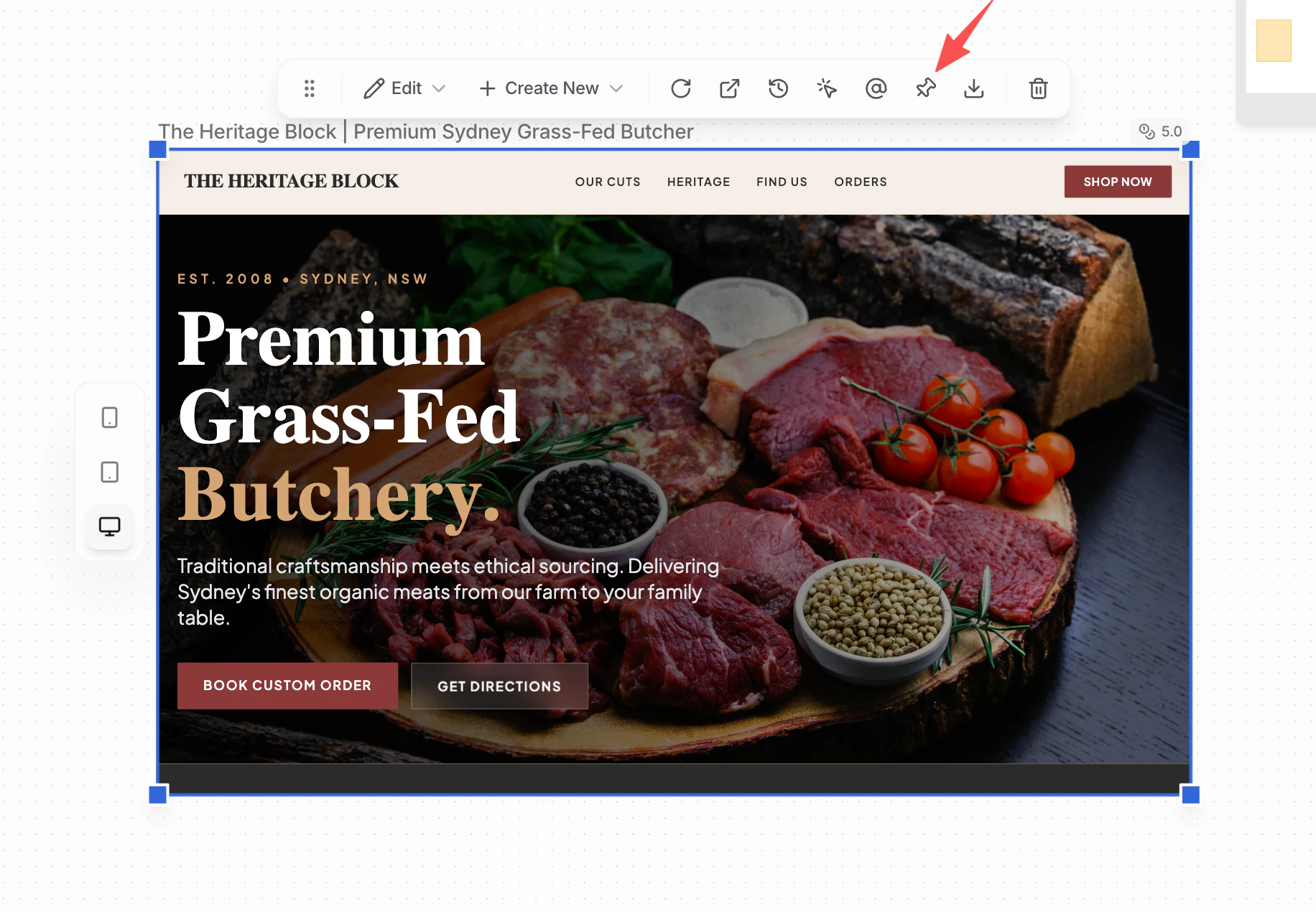
You can also pin the current design draft directly from the canvas.
1. Select the design draft
2. Click the **Pin** icon in the top menu bar
3. Add an optional instruction
4. The design is immediately added to pinned context
This is the fastest way to lock in a design while you're actively working on it.
#### Option 2: Pin Directly from the Design Canvas
You can also pin the current design draft directly from the canvas.
1. Select the design draft
2. Click the **Pin** icon in the top menu bar
3. Add an optional instruction
4. The design is immediately added to pinned context
This is the fastest way to lock in a design while you're actively working on it.
 ## How Pinned Context Is Used
* Always included in the agent's context
* Applied across future prompts and iterations
* Removes the need to repeat the same instructions
## When to Use Pinned Context
* You want consistency across multiple pages or flows
* You're iterating on a design you like
* You want the agent to "remember" key decisions
Pinned Context turns one-off guidance into persistent design memory for the agent.
## How Pinned Context Is Used
* Always included in the agent's context
* Applied across future prompts and iterations
* Removes the need to repeat the same instructions
## When to Use Pinned Context
* You want consistency across multiple pages or flows
* You're iterating on a design you like
* You want the agent to "remember" key decisions
Pinned Context turns one-off guidance into persistent design memory for the agent.