> ## Documentation Index
> Fetch the complete documentation index at: https://docs.superdesign.dev/llms.txt
> Use this file to discover all available pages before exploring further.
# Manual Edits
> Directly click, drag, resize, and style any element on the canvas without writing a prompt
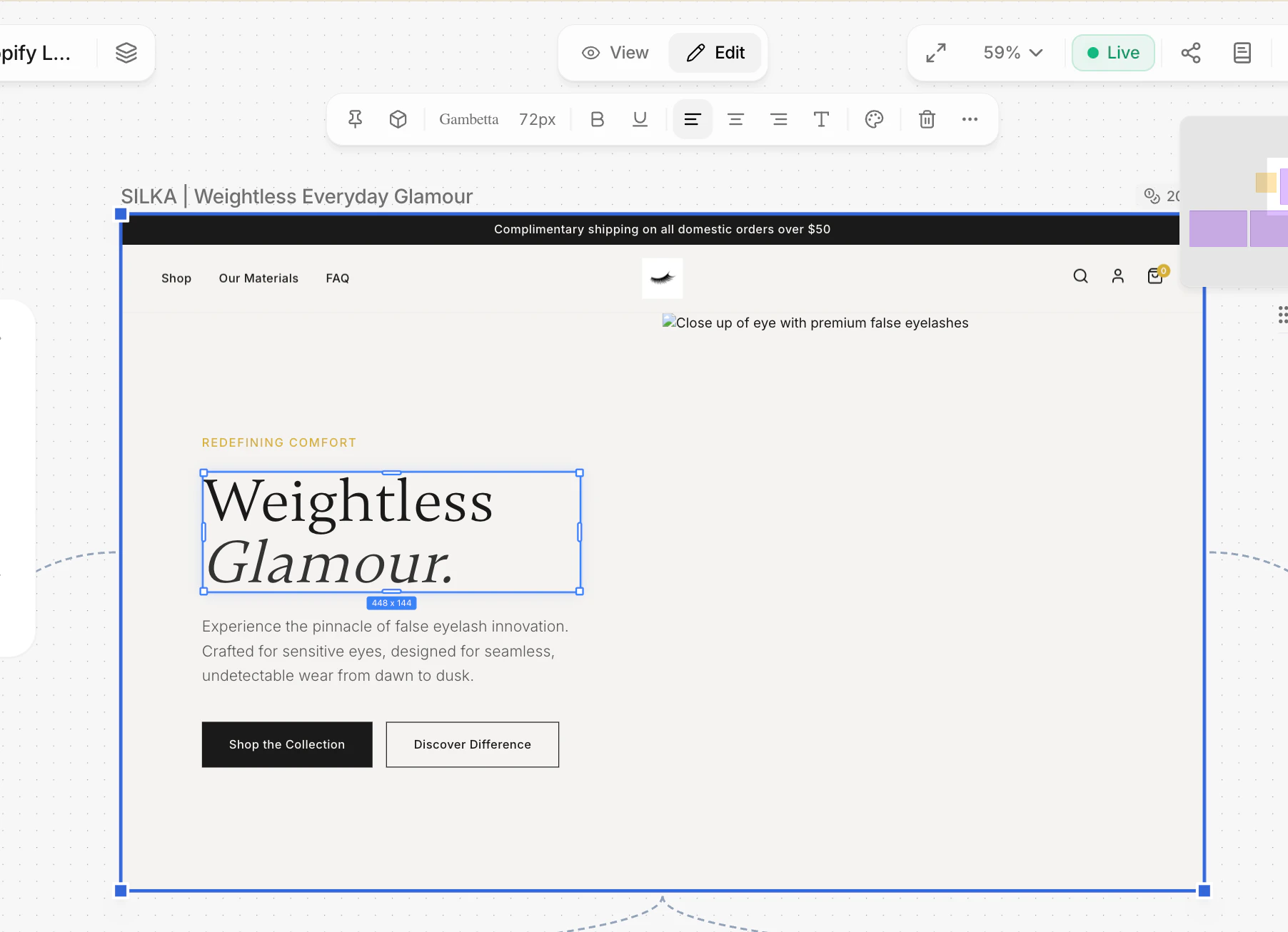
Manual Edits (called **Visual Edits** in the UI) let you directly click, drag, resize, and style any element on the canvas without writing a prompt. Changes are auto-saved and fully undoable.
 ## Activating Edit Mode
Two ways to enter Edit mode:
1. **Mode Switcher** (top-center toolbar) — toggle **View** → **Edit**
2. **Component Toolbar** → **Edit** → **Visual edits** — from any component's floating toolbar
When active, the cursor changes and a blue selection overlay appears on hover.
## Selecting Elements
Single-click an element to select it. A blue bounding box with resize handles appears, along with the **Mini Editor** toolbar — a contextual floating bar near the selection.
## Mini Editor Toolbar
When an element is selected, these controls appear inline:
| Control | What it does |
| ------------------ | ------------------------------------- |
| Font family | Change typeface (from document fonts) |
| Font size (px) | Typography scale: 8–96 px |
| **B** Bold | Toggle bold / font-weight |
| U Underline | Toggle underline |
| Align L / C / R | Set text alignment |
| Text color | Color picker for text |
| Delete | Remove selected element |
| More (**···**) | Additional options menu |
The **More** menu opens popover panels for deeper control:
* **Layout** — Display (block / flex / grid), justify, align, padding, margin, gap
* **Typography** — Font, size, line-height, weight, alignment
* **Colors** — Text, background, border color
* **Sizing & Position** — Width, height, border radius, border width
## Resizing
Drag any of the 8 corner or edge handles to resize an element. Snap guides appear for alignment. Font size can scale proportionally on text elements.
## Moving & Reordering
* **Flow layout** — Drag to reorder. A blue drop indicator shows the landing position.
* **Absolute positioned** — Drag freely anywhere with snap alignment.
## Inline Text Editing
Double-click any text element to edit it directly. Press **Enter** to confirm or **Escape** to cancel.
## Image Cropping
Double-click an image element to open the crop overlay. Drag to reposition or crop. The result is saved as a CSS `object-view-box`.
## Undo / Redo
| Shortcut | Action |
| -------- | ------ |
| **⌘Z** | Undo |
| **⌘⇧Z** | Redo |
Each resize, move, style change, or text edit is a separate undo step. Undo / Redo is also accessible from the logo dropdown menu (top-left).
## Auto-Save
Changes save automatically **2.5 s** after your last action. The status indicator cycles through **Unsaved → Saving… → Saved** and retries up to 3 times on failure.
## Copy / Paste Elements
**⌘C** copies the selected element's HTML. **⌘V** pastes it after the current selection (or into a target container). Works across components.
## Exiting Edit Mode
Toggle back to **View** in the mode switcher. Any unsaved changes auto-save before the session ends.
## Activating Edit Mode
Two ways to enter Edit mode:
1. **Mode Switcher** (top-center toolbar) — toggle **View** → **Edit**
2. **Component Toolbar** → **Edit** → **Visual edits** — from any component's floating toolbar
When active, the cursor changes and a blue selection overlay appears on hover.
## Selecting Elements
Single-click an element to select it. A blue bounding box with resize handles appears, along with the **Mini Editor** toolbar — a contextual floating bar near the selection.
## Mini Editor Toolbar
When an element is selected, these controls appear inline:
| Control | What it does |
| ------------------ | ------------------------------------- |
| Font family | Change typeface (from document fonts) |
| Font size (px) | Typography scale: 8–96 px |
| **B** Bold | Toggle bold / font-weight |
| U Underline | Toggle underline |
| Align L / C / R | Set text alignment |
| Text color | Color picker for text |
| Delete | Remove selected element |
| More (**···**) | Additional options menu |
The **More** menu opens popover panels for deeper control:
* **Layout** — Display (block / flex / grid), justify, align, padding, margin, gap
* **Typography** — Font, size, line-height, weight, alignment
* **Colors** — Text, background, border color
* **Sizing & Position** — Width, height, border radius, border width
## Resizing
Drag any of the 8 corner or edge handles to resize an element. Snap guides appear for alignment. Font size can scale proportionally on text elements.
## Moving & Reordering
* **Flow layout** — Drag to reorder. A blue drop indicator shows the landing position.
* **Absolute positioned** — Drag freely anywhere with snap alignment.
## Inline Text Editing
Double-click any text element to edit it directly. Press **Enter** to confirm or **Escape** to cancel.
## Image Cropping
Double-click an image element to open the crop overlay. Drag to reposition or crop. The result is saved as a CSS `object-view-box`.
## Undo / Redo
| Shortcut | Action |
| -------- | ------ |
| **⌘Z** | Undo |
| **⌘⇧Z** | Redo |
Each resize, move, style change, or text edit is a separate undo step. Undo / Redo is also accessible from the logo dropdown menu (top-left).
## Auto-Save
Changes save automatically **2.5 s** after your last action. The status indicator cycles through **Unsaved → Saving… → Saved** and retries up to 3 times on failure.
## Copy / Paste Elements
**⌘C** copies the selected element's HTML. **⌘V** pastes it after the current selection (or into a target container). Works across components.
## Exiting Edit Mode
Toggle back to **View** in the mode switcher. Any unsaved changes auto-save before the session ends.