> ## Documentation Index
> Fetch the complete documentation index at: https://docs.superdesign.dev/llms.txt
> Use this file to discover all available pages before exploring further.
# Link Components
> Link multiple components together to create clickable, interactive user flows
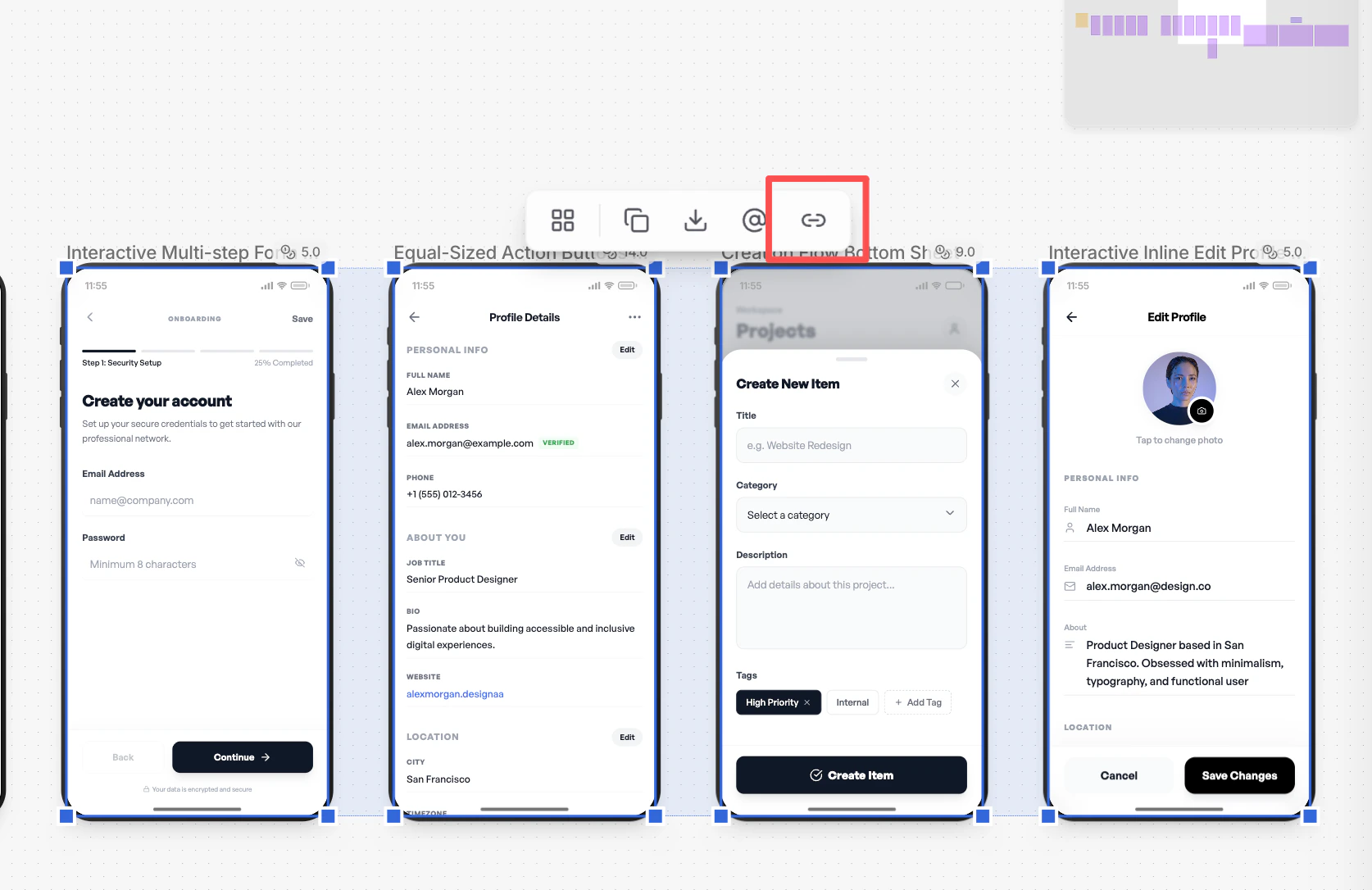
You can link multiple components together to form a complete, interactive user flow. This lets you click through screens in sequence—just like a real product.
 ***
## How It Works
1. Multi-select the components you want to link
2. Click the **Link** icon in the floating toolbar
3. Once linked, clicking a component in preview will navigate to the next screen
***
## What This Is Used For
* Creating end-to-end user flows (onboarding, forms, settings, checkout, etc.)
* Demonstrating interactions across multiple screens
* Making prototypes clickable and interactive, not just static layouts
***
## Common Examples
* **Onboarding** → Profile setup → Confirmation
* **List page** → Create item → Success state
* **View profile** → Edit profile → Save changes
***
## Why It Matters
* Turns isolated screens into a real experience
* Helps the agent understand navigation and flow logic
* Makes reviews, demos, and sharing much more intuitive
By linking components, your canvas becomes an interactive product flow—not just a collection of screens.
***
## How It Works
1. Multi-select the components you want to link
2. Click the **Link** icon in the floating toolbar
3. Once linked, clicking a component in preview will navigate to the next screen
***
## What This Is Used For
* Creating end-to-end user flows (onboarding, forms, settings, checkout, etc.)
* Demonstrating interactions across multiple screens
* Making prototypes clickable and interactive, not just static layouts
***
## Common Examples
* **Onboarding** → Profile setup → Confirmation
* **List page** → Create item → Success state
* **View profile** → Edit profile → Save changes
***
## Why It Matters
* Turns isolated screens into a real experience
* Helps the agent understand navigation and flow logic
* Makes reviews, demos, and sharing much more intuitive
By linking components, your canvas becomes an interactive product flow—not just a collection of screens.