> ## Documentation Index
> Fetch the complete documentation index at: https://docs.superdesign.dev/llms.txt
> Use this file to discover all available pages before exploring further.
# Flow - Generate User Journey Pages
> Flow helps you design the remaining pages of a product once the visual style is confirmed
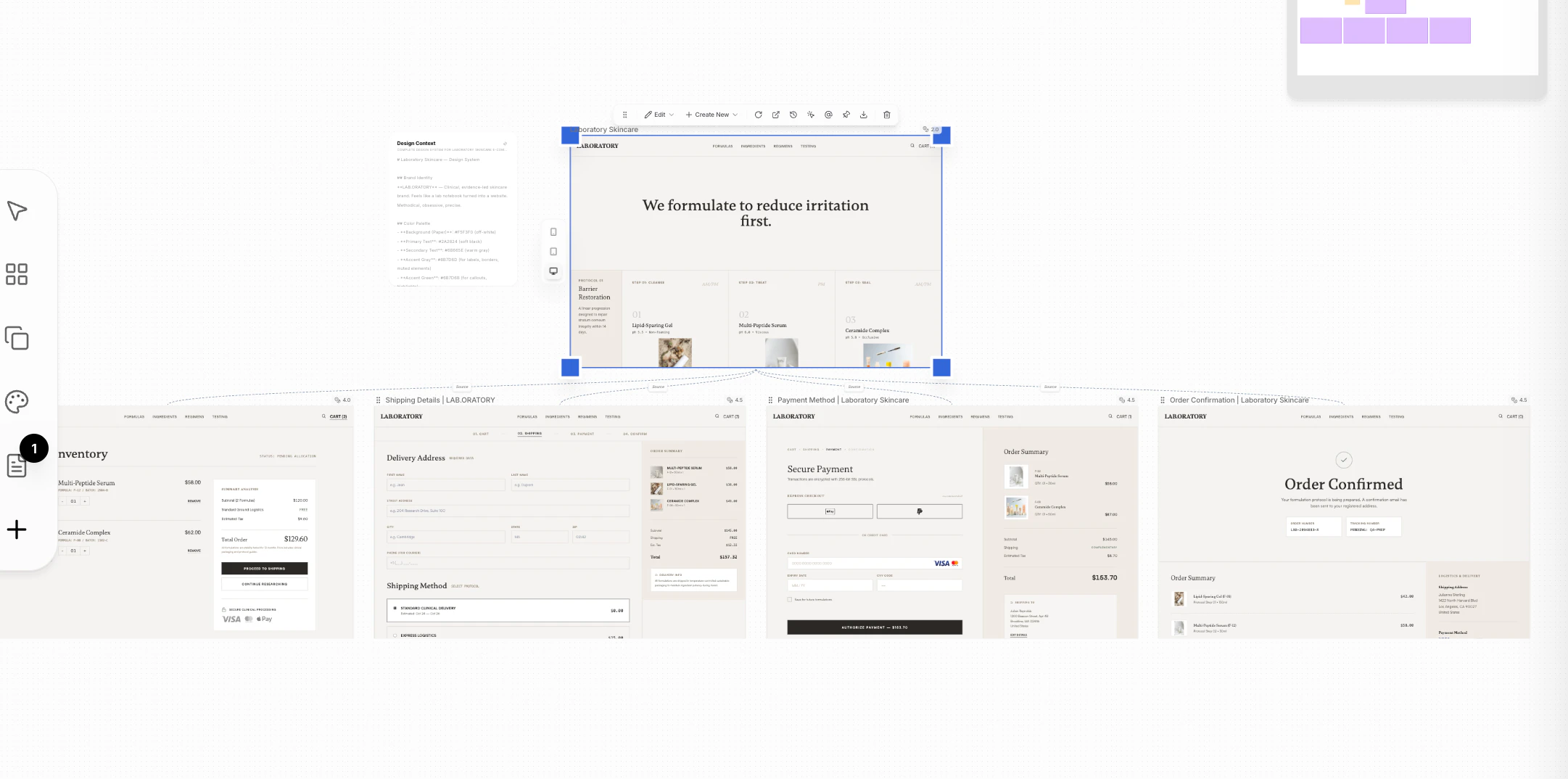
Flow helps you design the remaining pages of a product once the visual style is confirmed.
Use it to build complete user journeys—such as checkout, onboarding, or account flows—while keeping a consistent design system.
 ***
## How to Access
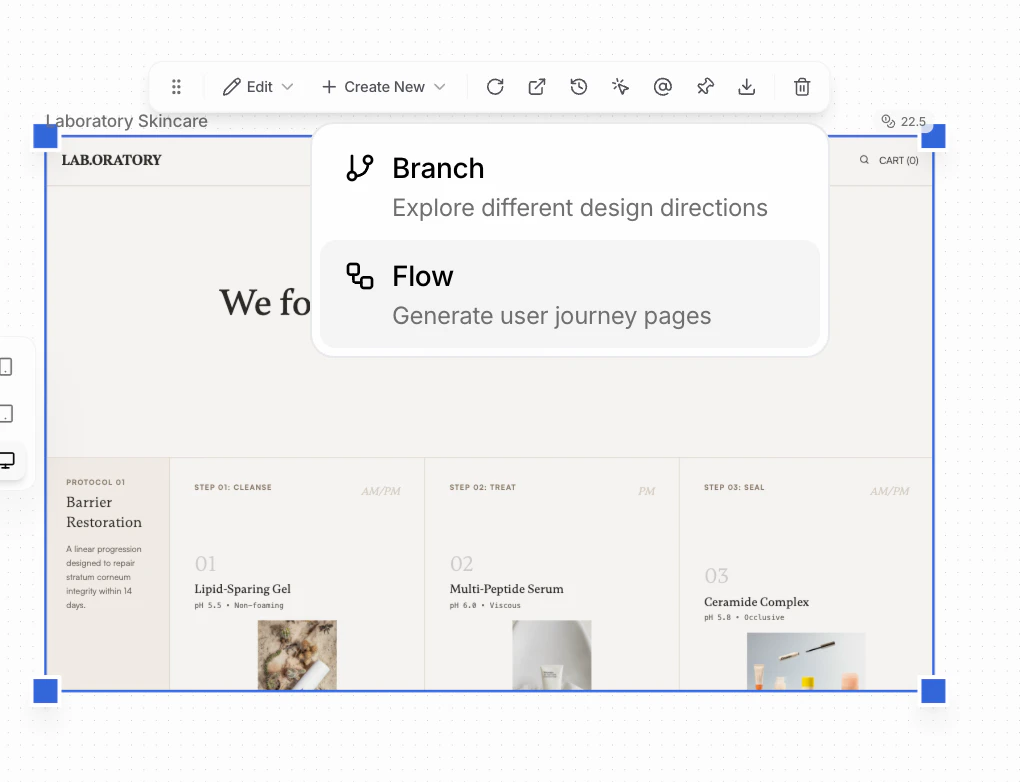
1. Select a page or frame (this becomes the source style)
2. Click **Create New → Flow**
All pages generated in the flow will inherit the visual style from this source page.
***
## How to Access
1. Select a page or frame (this becomes the source style)
2. Click **Create New → Flow**
All pages generated in the flow will inherit the visual style from this source page.
 ***
## Define the Journey
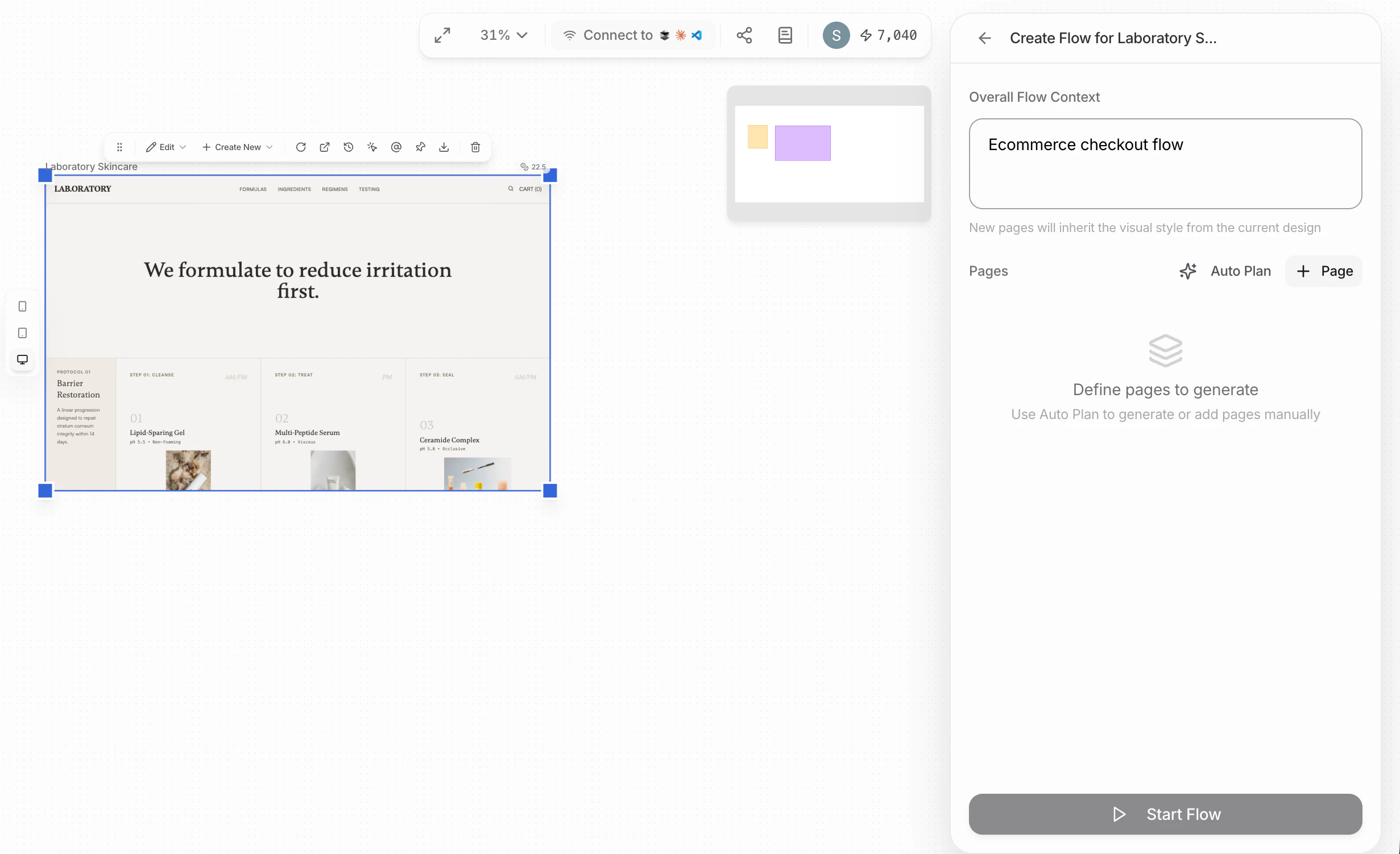
### Overall Flow Context
Start by describing the journey you want to build.
**Ecommerce**
* "Ecommerce checkout flow from cart to order confirmation"
* "Product discovery to purchase flow for skincare brand"
* "Guest checkout flow with express payment options"
**SaaS**
* "New user onboarding flow from sign-up to first success"
* "Pricing page → upgrade → payment → confirmation flow"
* "Trial user conversion flow"
**Marketplace / Platform**
* "Seller onboarding flow from account creation to first listing"
* "Booking and payment flow for service marketplace"
**Account & Settings**
* "Account setup and profile completion flow"
* "Password reset and security update flow"
This gives the agent high-level intent and structure.
***
## Define the Journey
### Overall Flow Context
Start by describing the journey you want to build.
**Ecommerce**
* "Ecommerce checkout flow from cart to order confirmation"
* "Product discovery to purchase flow for skincare brand"
* "Guest checkout flow with express payment options"
**SaaS**
* "New user onboarding flow from sign-up to first success"
* "Pricing page → upgrade → payment → confirmation flow"
* "Trial user conversion flow"
**Marketplace / Platform**
* "Seller onboarding flow from account creation to first listing"
* "Booking and payment flow for service marketplace"
**Account & Settings**
* "Account setup and profile completion flow"
* "Password reset and security update flow"
This gives the agent high-level intent and structure.
 ***
## Plan Pages
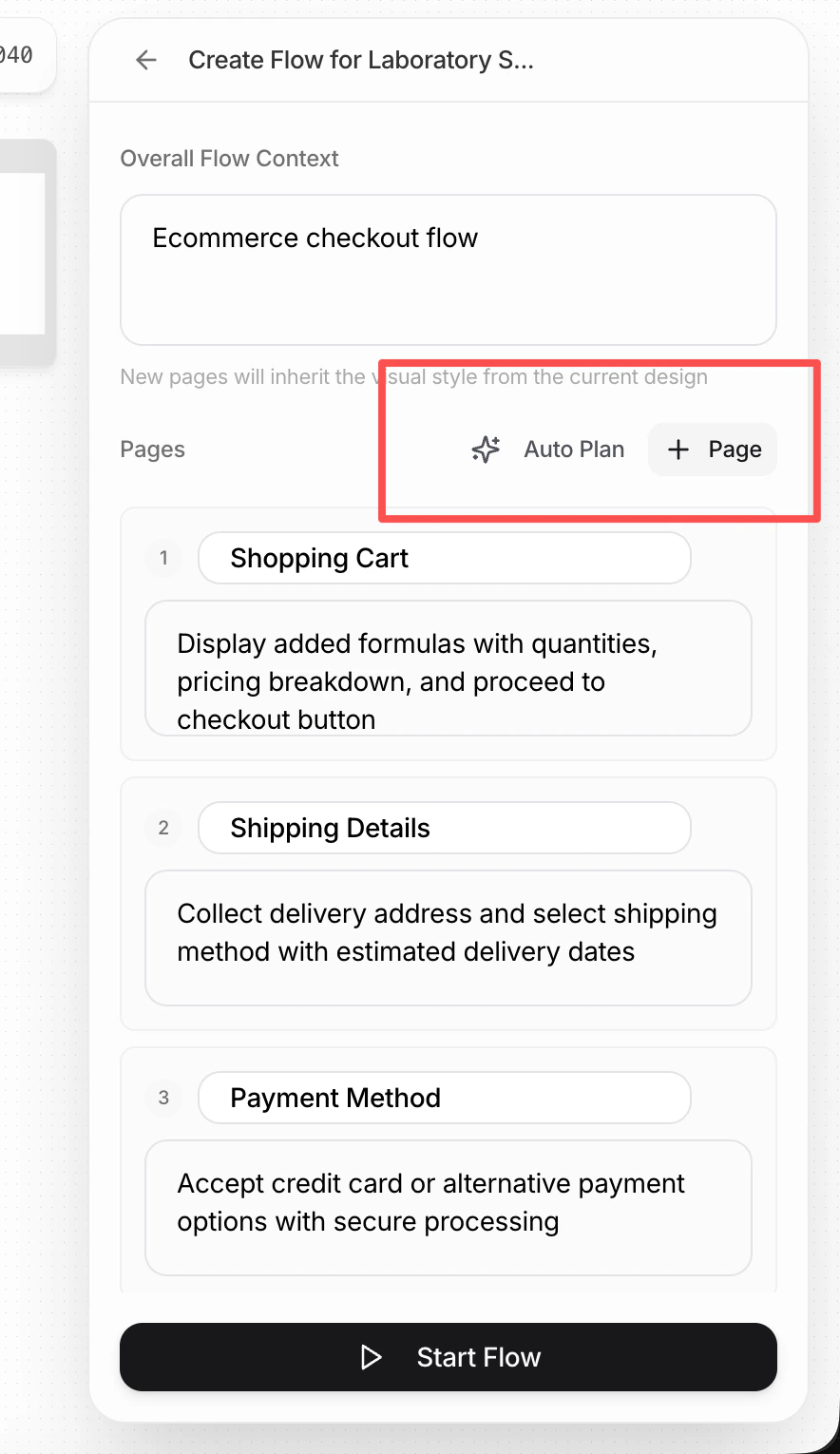
You have two ways to define the flow:
### Auto Plan
1. Click **Auto Plan**
2. The agent will:
* Design the full journey
* Decide which pages are needed
* Propose layouts for each page
Best when you want speed or a standard flow.
### Manual Pages
1. Click **+ Page**
2. Define each page yourself:
* Page purpose
* Page layout
You only need to specify the layout here. Style automatically follows the source page where the flow was created.
***
## Plan Pages
You have two ways to define the flow:
### Auto Plan
1. Click **Auto Plan**
2. The agent will:
* Design the full journey
* Decide which pages are needed
* Propose layouts for each page
Best when you want speed or a standard flow.
### Manual Pages
1. Click **+ Page**
2. Define each page yourself:
* Page purpose
* Page layout
You only need to specify the layout here. Style automatically follows the source page where the flow was created.
 ***
## Using Layout Inspirations
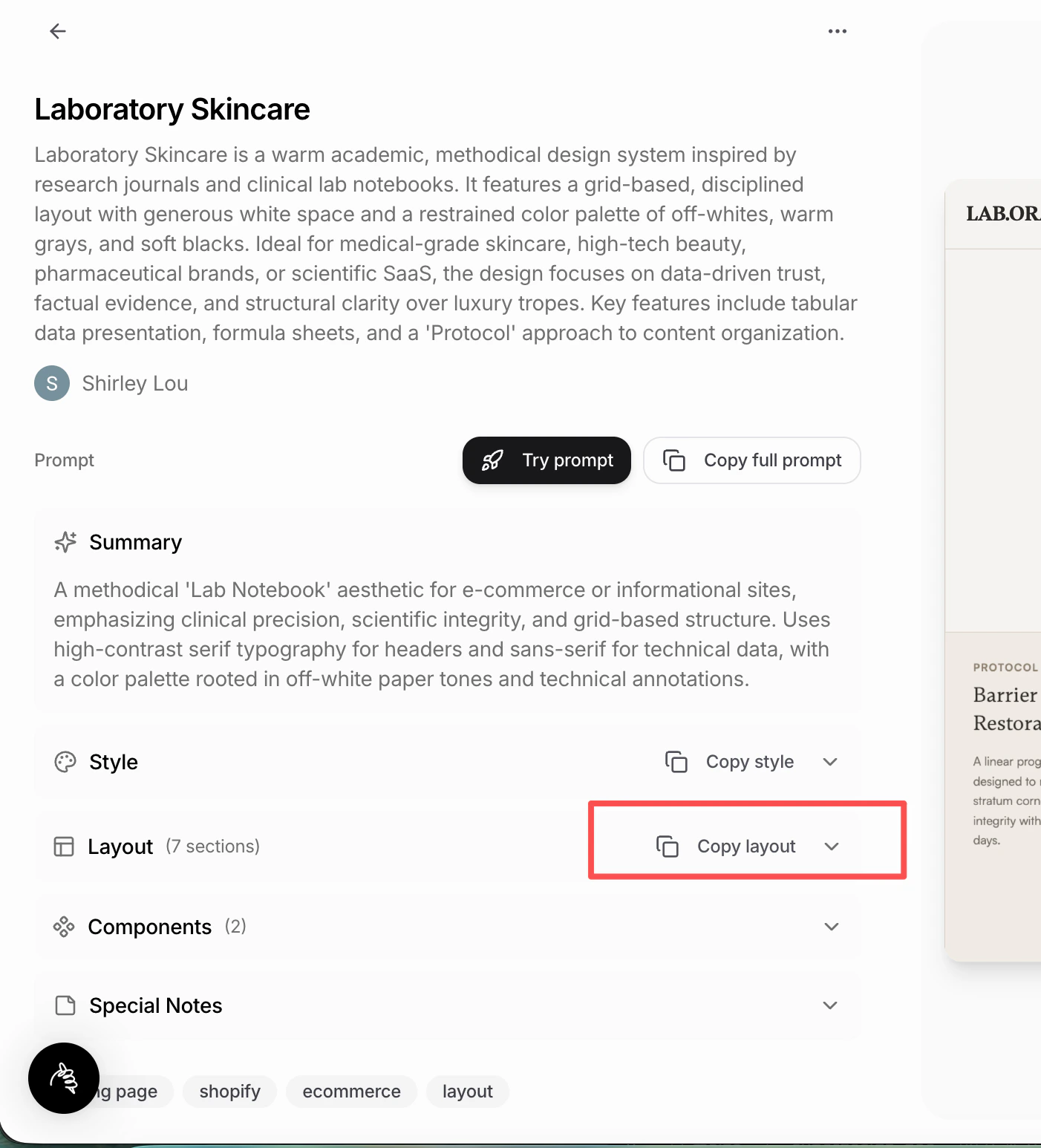
You can reuse layouts from the Superdesign Prompt Library:
1. Go to: [Superdesign Prompt Library](https://app.superdesign.dev/library)
2. Find a page you like
3. Click **Copy layout**
4. Paste it into the Flow page definition
This lets you mix proven layouts with your own journey logic—without restyling.
***
## Using Layout Inspirations
You can reuse layouts from the Superdesign Prompt Library:
1. Go to: [Superdesign Prompt Library](https://app.superdesign.dev/library)
2. Find a page you like
3. Click **Copy layout**
4. Paste it into the Flow page definition
This lets you mix proven layouts with your own journey logic—without restyling.
 ***
## When to Use Flow
Use Flow when:
* You've locked in a visual direction
* You want to design connected pages beyond the landing page
* You need consistency across a full user journey
Flow focuses on structure and journey, not visual exploration—that's what Branch is for.
***
## When to Use Flow
Use Flow when:
* You've locked in a visual direction
* You want to design connected pages beyond the landing page
* You need consistency across a full user journey
Flow focuses on structure and journey, not visual exploration—that's what Branch is for.